

Waitlist emails & timing rules
Minimum notice, cooldown, and notification emails.
Quick answer: Set minimum notice and re-notification cooldown under Scheduling settings. When a spot opens, the first waitlisted customer gets an email with a link to book.
Before you start
- Waitlist enabled
Overview
Waitlist notifications are transactional emails sent when a spot opens on a full session. Two timing rules control when emails go out and how often the same opening can trigger another notification.
| Setting | What it does |
|---|---|
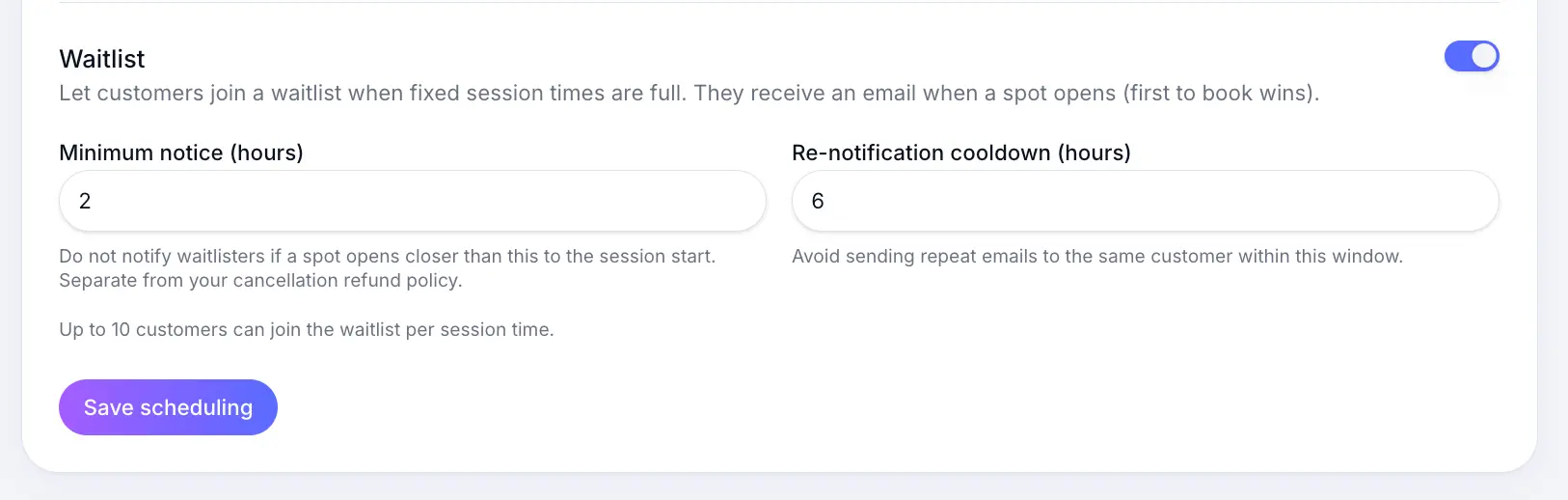
| Minimum notice | No notification if the spot opens too close to session start |
| Re-notification cooldown | Wait before emailing the next person for the same opening |
Before you start
Note
Both fields accept 0–48 hours. Set minimum notice to avoid last-minute notifications customers cannot act on.
How notifications work
A spot opens
Someone cancels or you free capacity on a full session.
Minimum notice is checked
If the session starts within your minimum notice window, no email is sent automatically.
Look for: Minimum notice (hours)
First waitlisted customer is emailed
They receive a spot-available email with a direct link to book the open slot.
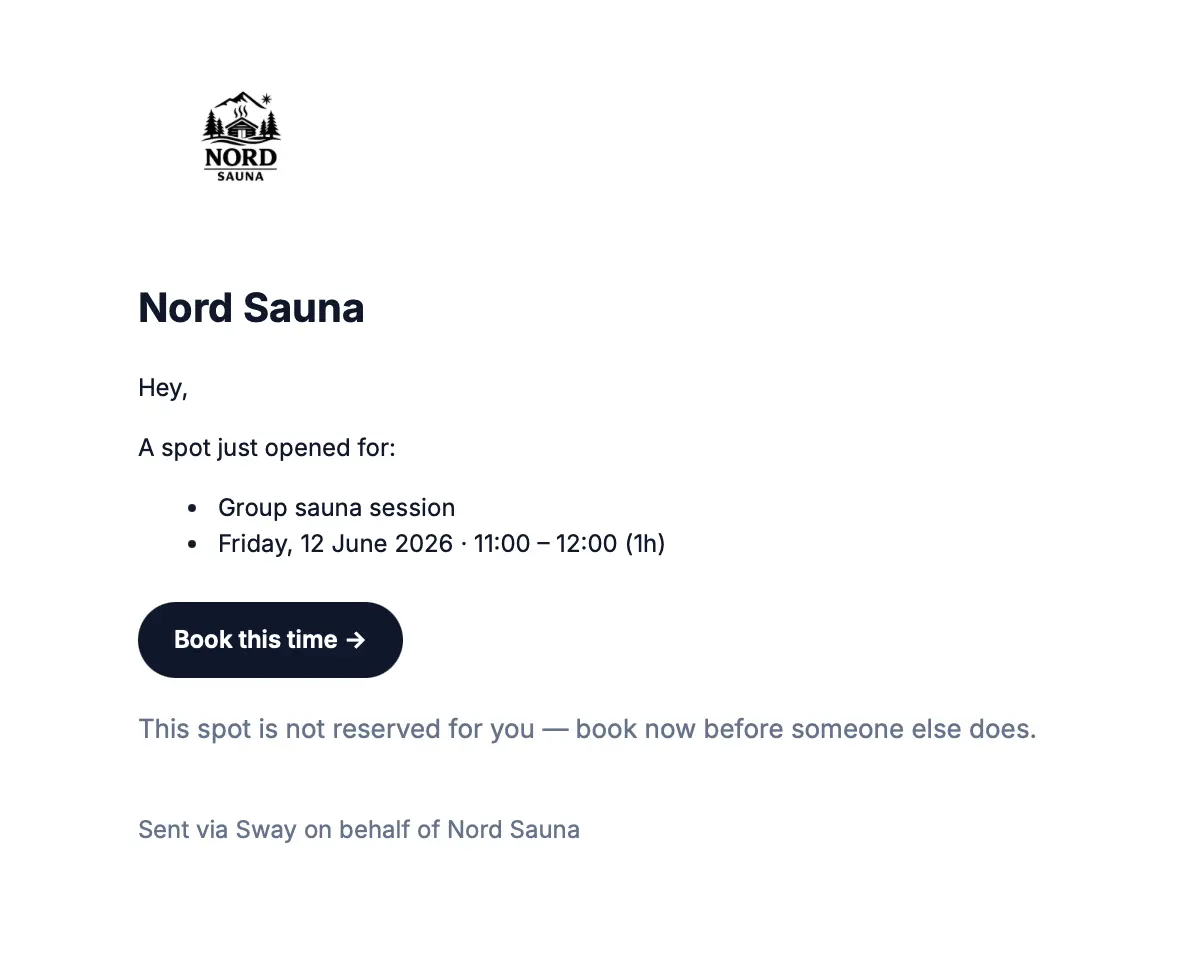
The email includes session name, date, time, and a link to book. Cooldown before the next notification
If the notified customer does not book, Sway waits for the cooldown period before emailing the next person for the same opening.
Look for: Re-notification cooldown (hours)
Common questions
Frequently asked questions
Waitlist requires notifications to work. You can still manage entries manually from the calendar without relying on automatic sends.
Related articles
Waitlist
Waitlist settings
Turn on waitlist, set minimum notice and re-notification cooldown.
Waitlist
Waitlist overview
Let customers join a waitlist when a session or event is full, and notify them when a spot opens.
Plans & billing
Email features by plan
Booking confirmations, reminders, and business notification emails on Free vs paid plans.
Still need help?
If this article didn't answer your question, search the help centre or contact our support team.
Sign in to open a tracked support ticket, or use the contact form.