

Switching workspaces
Move between business, personal, and support workspaces with one login.
Quick answer: One Sway login can access multiple workspaces — your business, your personal customer account, and (for support staff) the support inbox. Open Choose workspace from the account menu or visit /choose-workspace.
Overview
A workspace is a separate area of Sway tied to one role — running your business, managing your own bookings as a customer, or handling support tickets. You don't need separate logins; pick the workspace you want after signing in.
- Business — calendar, services, team, and settings for your salon or studio
- Personal — your bookings, passes, messages, and customer account settings
- Support — for Sway support staff only; customer ticket inbox
Before you start
Note
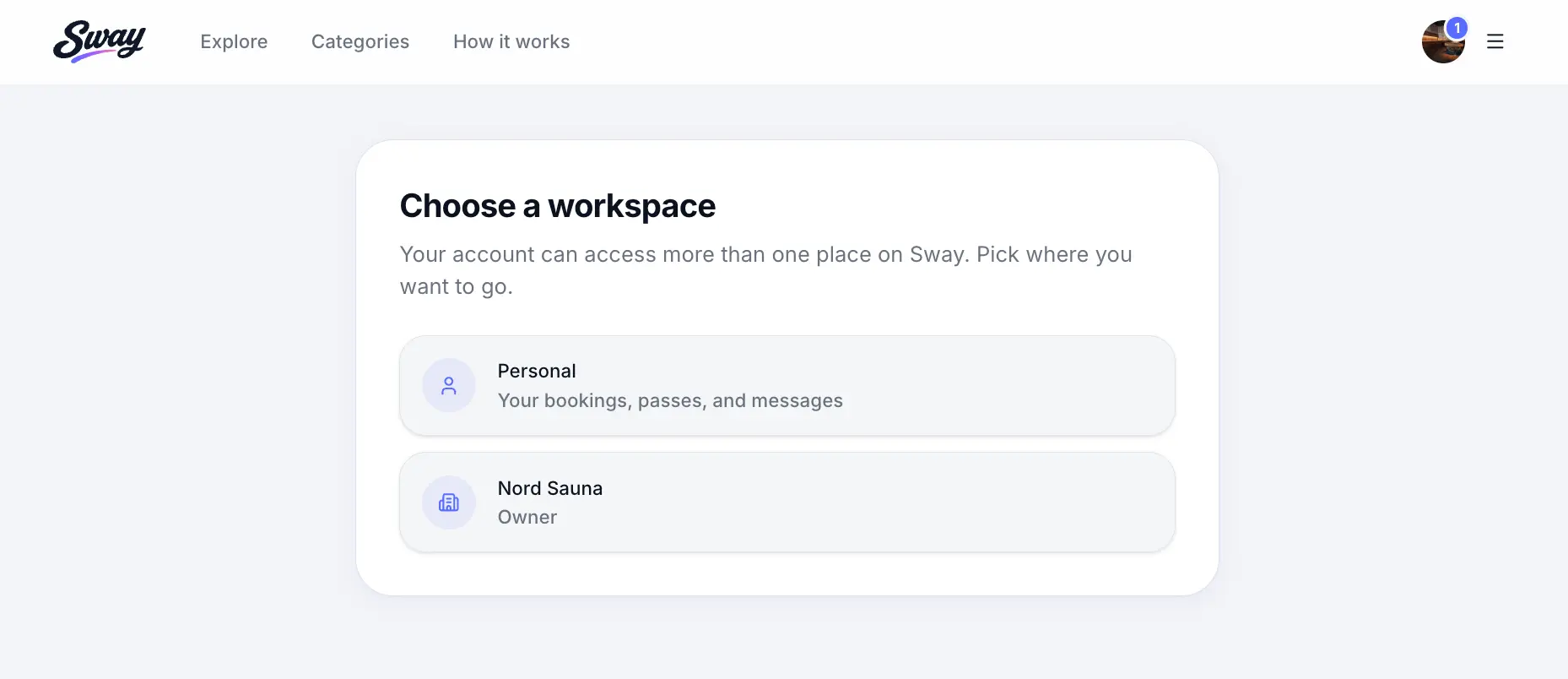
You only see Choose workspace when your account has access to more than one place. A single-workspace account goes straight to the dashboard after login.
How to switch
Open the account menu
Click your profile icon in the top navigation, then choose Switch workspace or Choose workspace.
Select a workspace
Tap the card for your business, Personal, or Support. Each shows a label and short description of what you'll find there.
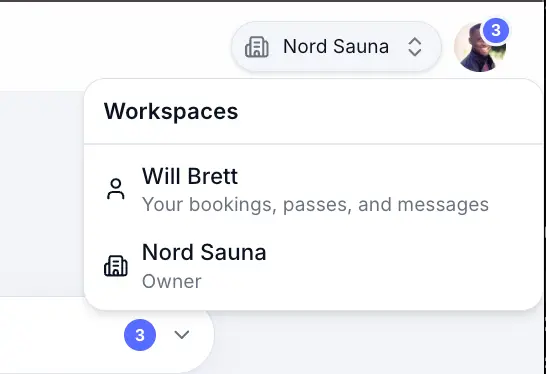
Switch anytime without signing out. Land on the right home screen
Business opens your dashboard; Personal opens your customer dashboard; Support opens the ticket admin inbox.
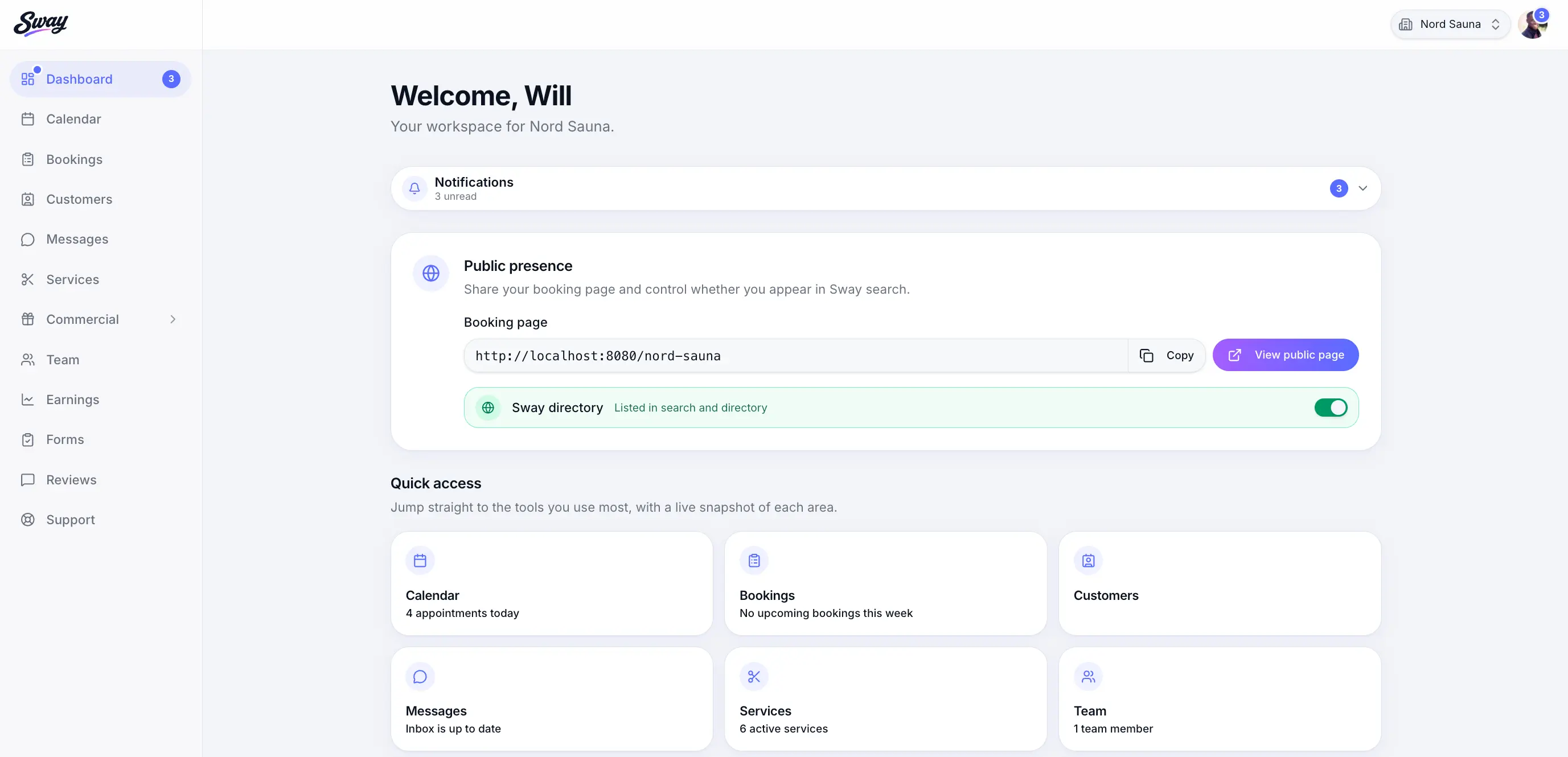
Your last workspace is remembered for next time.
Common questions
Frequently asked questions
Yes. Many owners also book other businesses on Sway. Your personal workspace is separate from your business workspace.
Related articles
Getting started
What is Sway?
Workspaces, your public booking page, and the Sway directory.
Getting started
Navigating the business app
Sidebar sections, settings, and what staff members can access.
Settings
Account & sign-in settings
Update your profile, email, and password for your business or personal workspace.
Still need help?
If this article didn't answer your question, search the help centre or contact our support team.
Sign in to open a tracked support ticket, or use the contact form.