

Your public booking page
Share your booking link and understand what customers see when they book online.
Quick answer: Every Sway business gets a public booking page at sway.app/your-slug. Copy the link from Business profile and share it on your website, socials, or Google Business Profile.
Overview
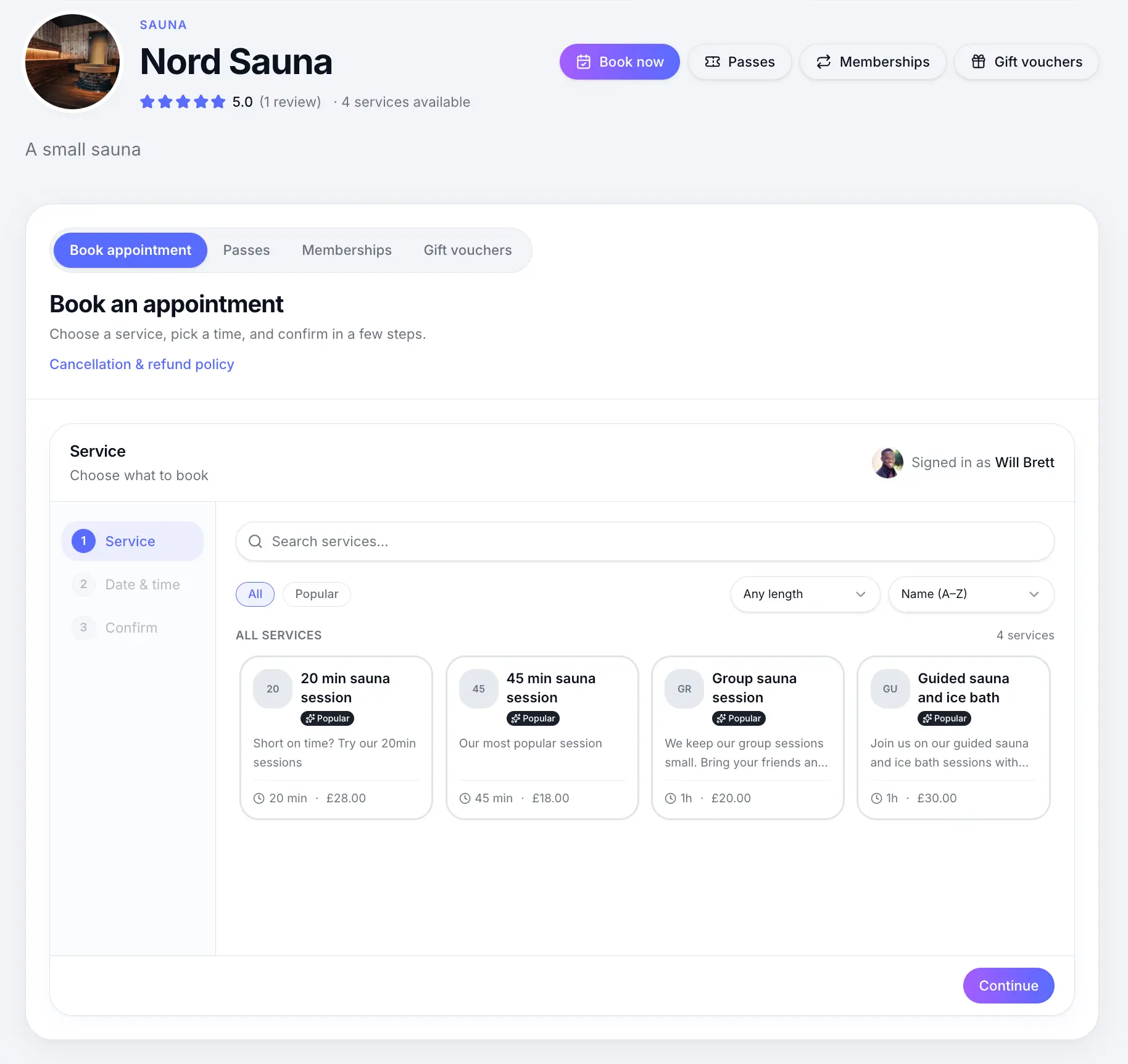
Your public booking page is where customers browse services, pick a time, and complete a booking. It works on mobile and desktop without them needing a Sway account.
- Always available at your unique URL
- Shows published services, photos, and reviews
- Supports online payment or pay-at-venue per service
- Separate from Sway directory listing (optional)
Before you start
Note
Your booking page stays public even if you hide your business from the Sway directory.
Step-by-step
Open Business profile settings
Look for: Business profile
Copy your booking page link
Under Public presence, copy your booking page URL or open it in a new tab to preview.
Look for: Copy
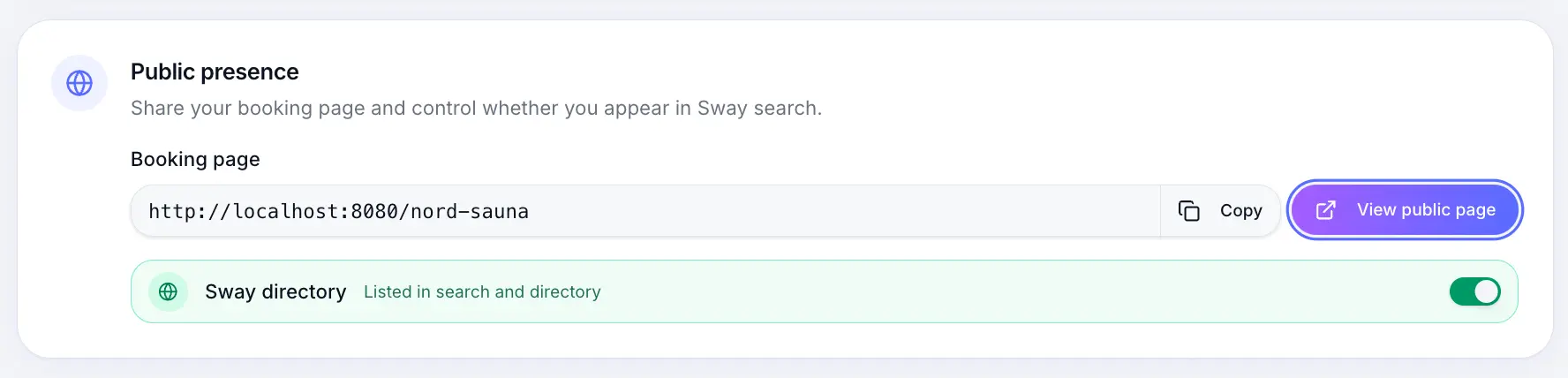
Share this link anywhere customers should book. Share the link
Add it to Instagram bio, Google Business Profile, your website, email signature, or QR code.
Preview as a customer
Open the link in a private window and walk through a test booking to confirm services and times look right.
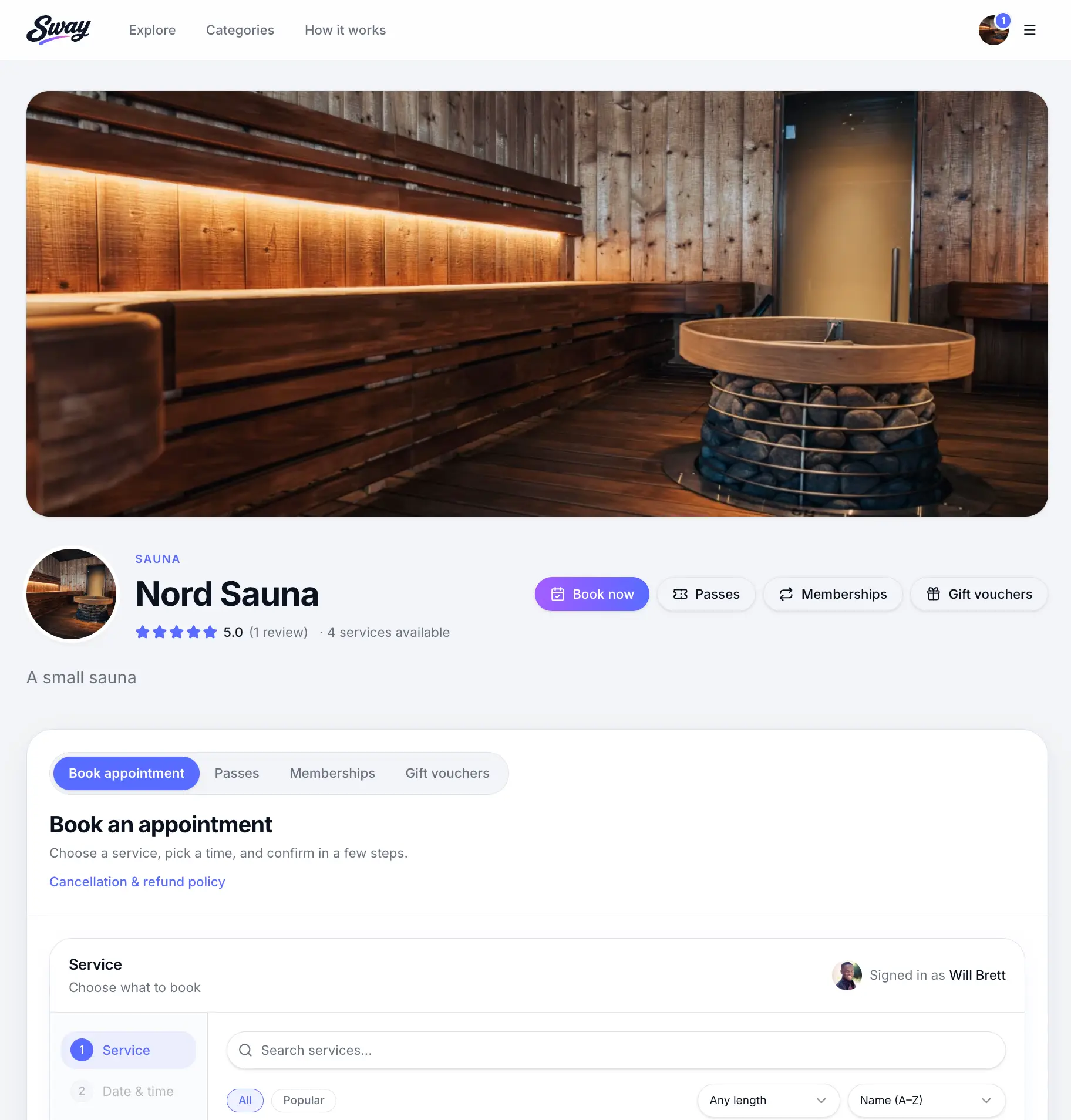
Check the page before sharing widely.
What happens next
New bookings appear on your calendar and in Bookings. Customers receive confirmation emails when your plan includes them.
Go-live checklistRead →Common questions
Frequently asked questions
Yes. Directory listing is optional. Your direct booking link always works.
Related articles
Plans & billing
Go-live checklist
Everything to check before sharing your booking page with customers.
Settings
Sharing your booking page link
Find your public booking URL in Business profile and share it with customers.
Settings
Sway directory listing
List or hide your business in Sway search and the public directory.
Still need help?
If this article didn't answer your question, search the help centre or contact our support team.
Sign in to open a tracked support ticket, or use the contact form.