

Setting up your business
Complete onboarding after signup — business name, type, and UK address.
Quick answer: After you confirm your email, complete onboarding at /onboarding with your name, business name, business type, and UK address. Sway uses your postcode for map placement and creates your public booking slug.
Overview
Onboarding is the short form you complete right after signing up for a business account. It captures the essentials Sway needs before you open your dashboard — who you are, what your business is called, what type of service you offer, and where you are based in the UK.
- Required after email confirmation for new business accounts
- Sets your public booking slug from your business name
- Geocodes your postcode for the Sway directory map
- You can add photos, description, and more later in Settings
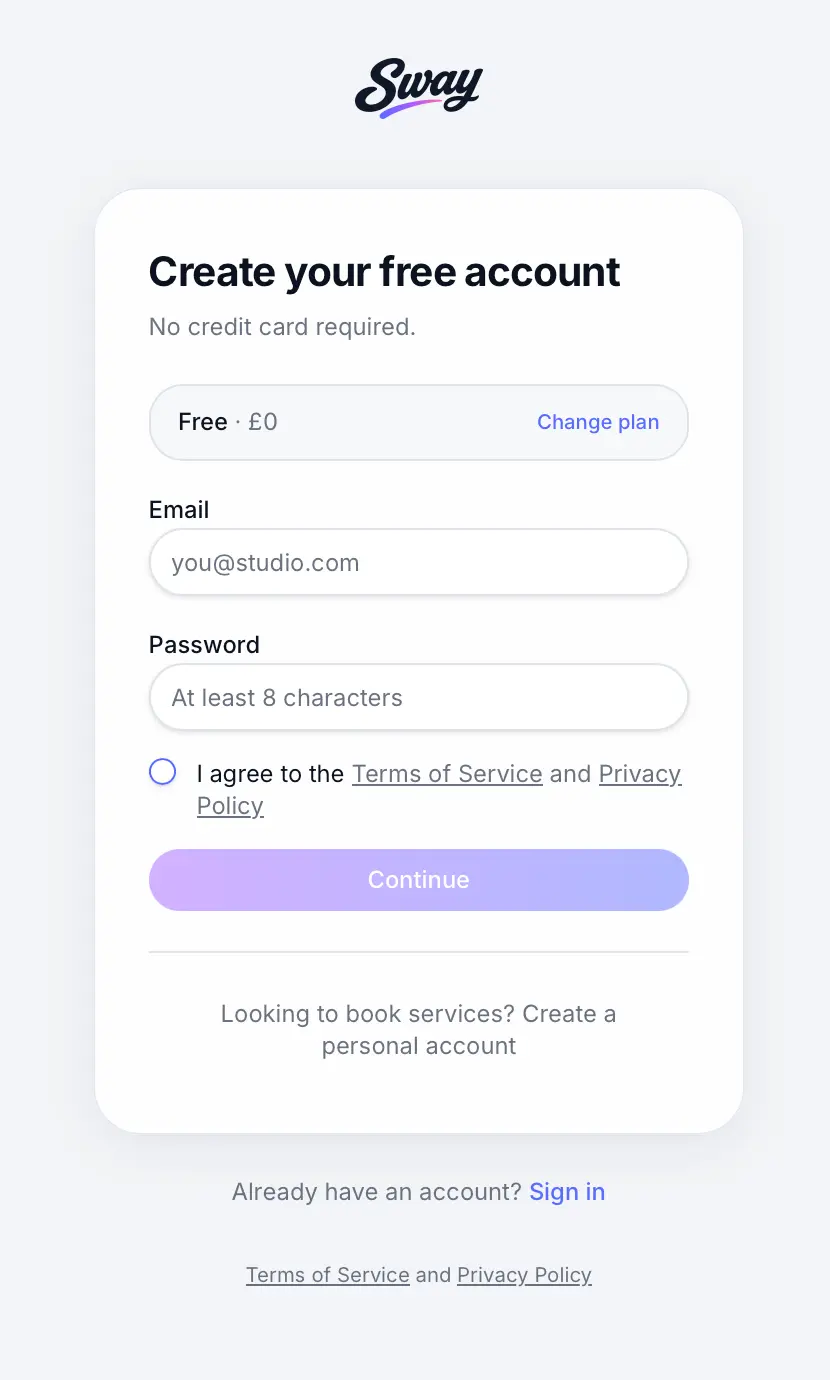
Before you start
Note
Have your UK business address and postcode ready. Sway validates the postcode and places your business on the map for local discovery.
Step-by-step
Confirm your email
If you signed up with email, confirm the link in your inbox first. You'll return to onboarding automatically.
Enter your name
Your first and last name appear on emails and internal records.
Look for: Your first name
Add your business name
This becomes your public business name and helps generate your booking page URL.
Look for: Business name
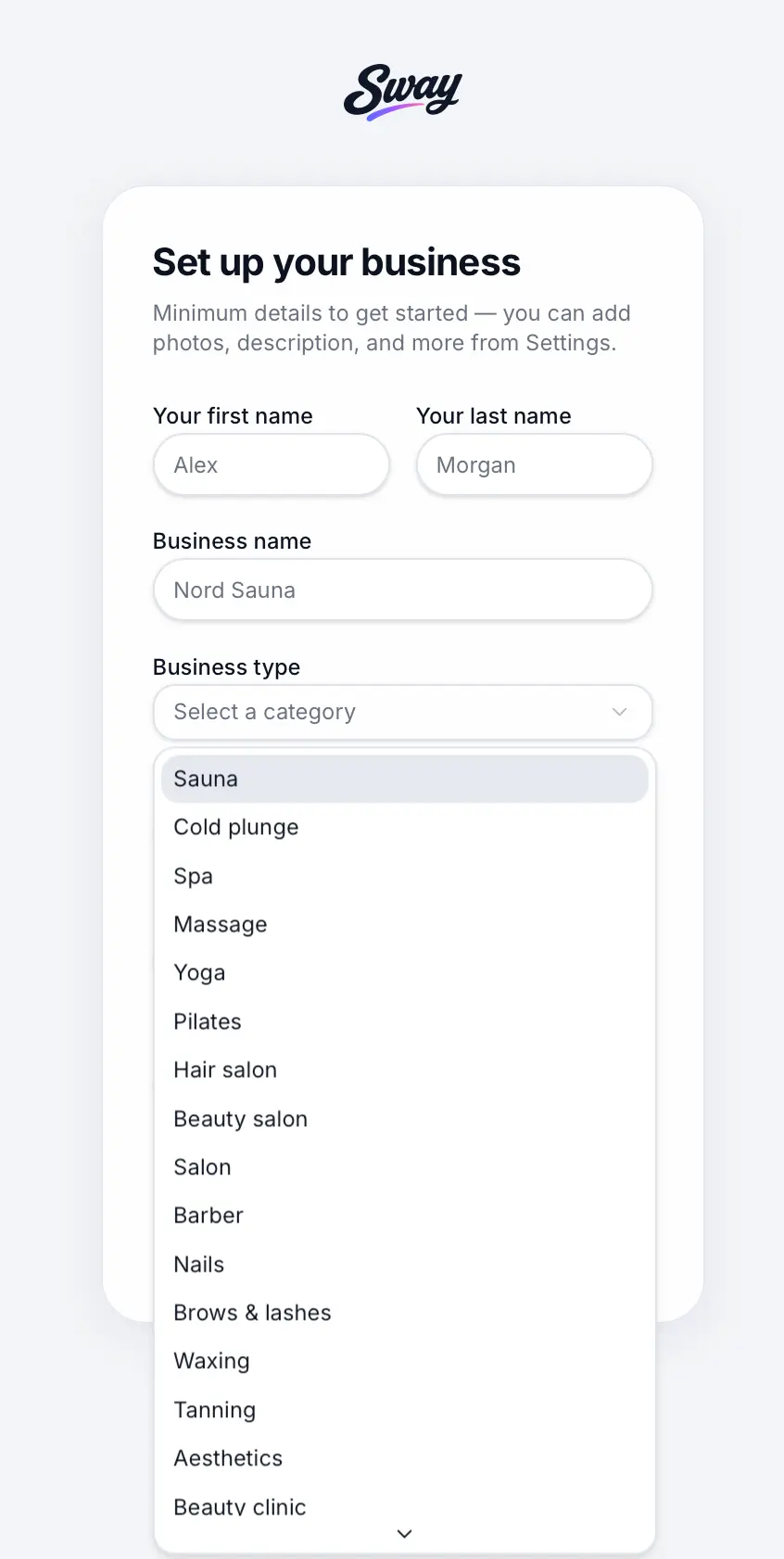
Pick the category that best describes your business. Select your business type
Choose from categories like Salon, Barber, Beauty clinic, or Personal trainer. This helps customers find you in the directory.
Look for: Business type
Enter your UK address
Add address line 1, city, and postcode. Line 2 is optional. Your postcode is used to place you on the map.
Look for: Postcode
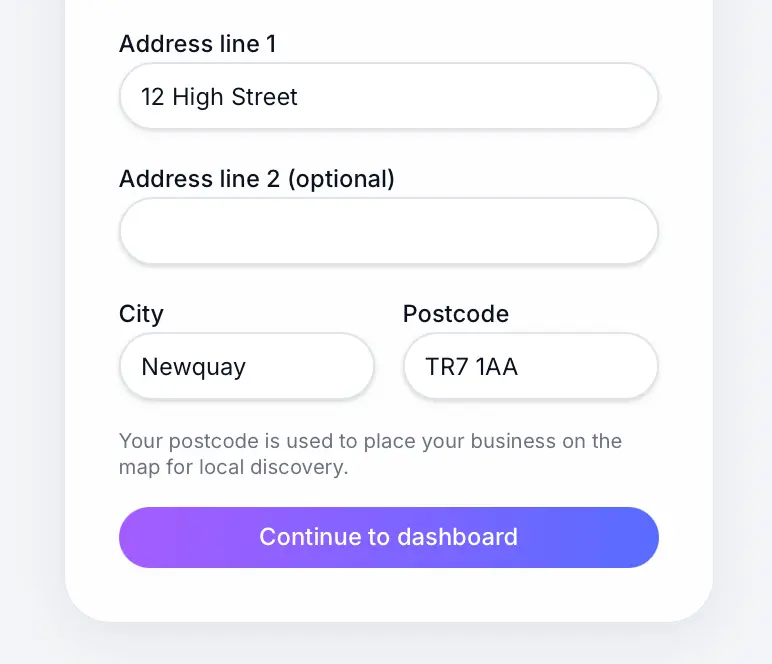
Use a valid UK postcode — Sway geocodes it for directory search. Continue to dashboard
When saved, you're taken to your business dashboard (or workspace picker if you have multiple workspaces).
Look for: Continue to dashboard
What happens next
Your business starts in draft mode — not live on the directory until you choose to go live. Follow the go-live checklist to add services, hours, and Stripe before sharing your booking link.
Go live checklistRead →Common questions
Frequently asked questions
Yes. Update it in Business profile settings. Your public slug can also be customised separately.
Related articles
Still need help?
If this article didn't answer your question, search the help centre or contact our support team.
Sign in to open a tracked support ticket, or use the contact form.