

Navigating the business app
Sidebar sections, settings, and what staff members can access.
Quick answer: The business sidebar groups day-to-day tools at the top, Commercial products under Team, and Settings plus Billing at the bottom. Staff members see a reduced set of pages.
Overview
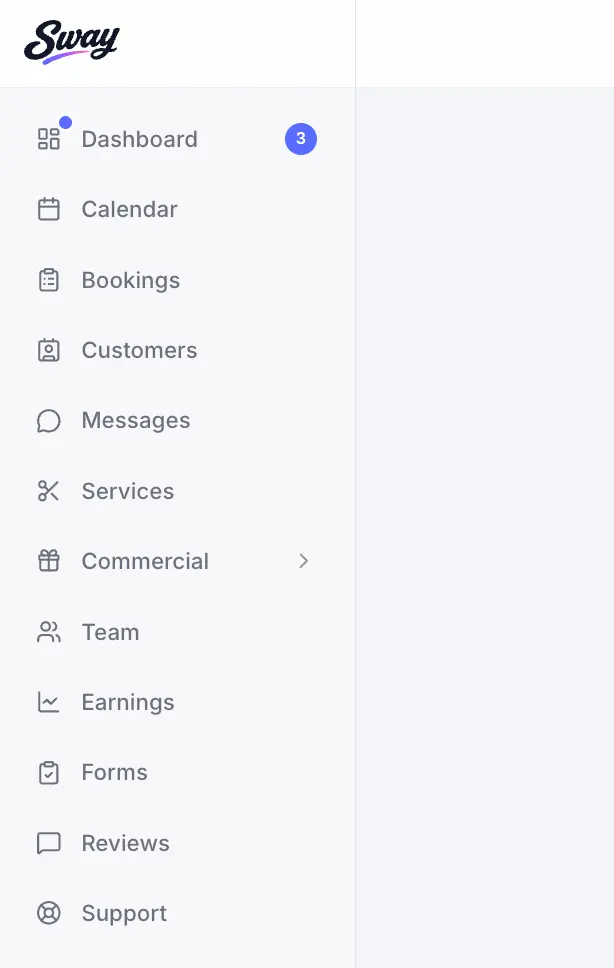
After you choose your business workspace, the left sidebar is your main navigation. Most daily work happens in Dashboard, Calendar, Bookings, Messages, and Marketing.
- Dashboard — setup checklist and quick links
- Calendar & Bookings — schedule and appointment list
- Services & Team — what you sell and who delivers it
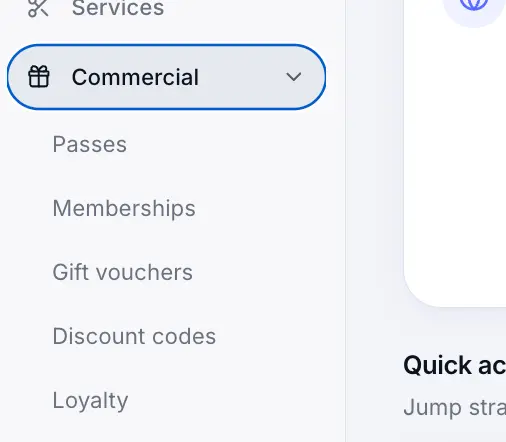
- Commercial — passes, memberships, vouchers, and discount codes
- Marketing — customers, campaigns, automations, and email usage
- Settings & Billing — profile, payments, scheduling, and plan
Before you start
Sidebar sections explained
Day-to-day operations
Dashboard, Calendar, Bookings, and Messages cover scheduling and inbox. Marketing → Customers is your client directory.
Catalogue and team
Services is where you create and price offerings. Team is for invites, roles, and per-staff schedules on the Team plan.
Settings (footer)
Business profile, Payments, Scheduling, Account, Appearance, and Embed live under Settings. Billing is separate for plan changes.
Look for: Settings
Staff access
Staff members (not owners or admins) see Calendar, Bookings, Messages, Marketing → Customers, and Account settings only — not Billing, Services, or profile settings.
Common questions
Frequently asked questions
Billing sits in the sidebar footer, below Settings. Only business owners and admins can open it.
Related articles
Getting started
Dashboard overview
Your business home screen — setup checklist, usage warnings, and quick links.
Team & customers
Team management
Invite staff, assign services, and manage team calendars on the Team plan.
Settings
Account & sign-in settings
Update your profile, email, and password for your business or personal workspace.
Team & customers
What staff can and cannot do
Staff role restrictions.
Still need help?
If this article didn't answer your question, search the help centre or contact our support team.
Sign in to open a tracked support ticket, or use the contact form.