

Upgrading & downgrading your plan
Move between Free, Individual, and Team — upgrades apply immediately; downgrades take effect at the end of your billing period.
Quick answer: Change your plan under Billing. Upgrades apply right away; downgrades and cancellations are scheduled for your billing period end after you review the impact.
Overview
You can upgrade, downgrade, or cancel your Sway subscription from Billing. Sway shows what will change — staff limits, services, locations — before you confirm a downgrade.
- Upgrades apply immediately with prorated billing
- Downgrades take effect at the end of your current billing period
- You keep your current plan features until the scheduled change date
- Cancel subscription moves you to Free at period end
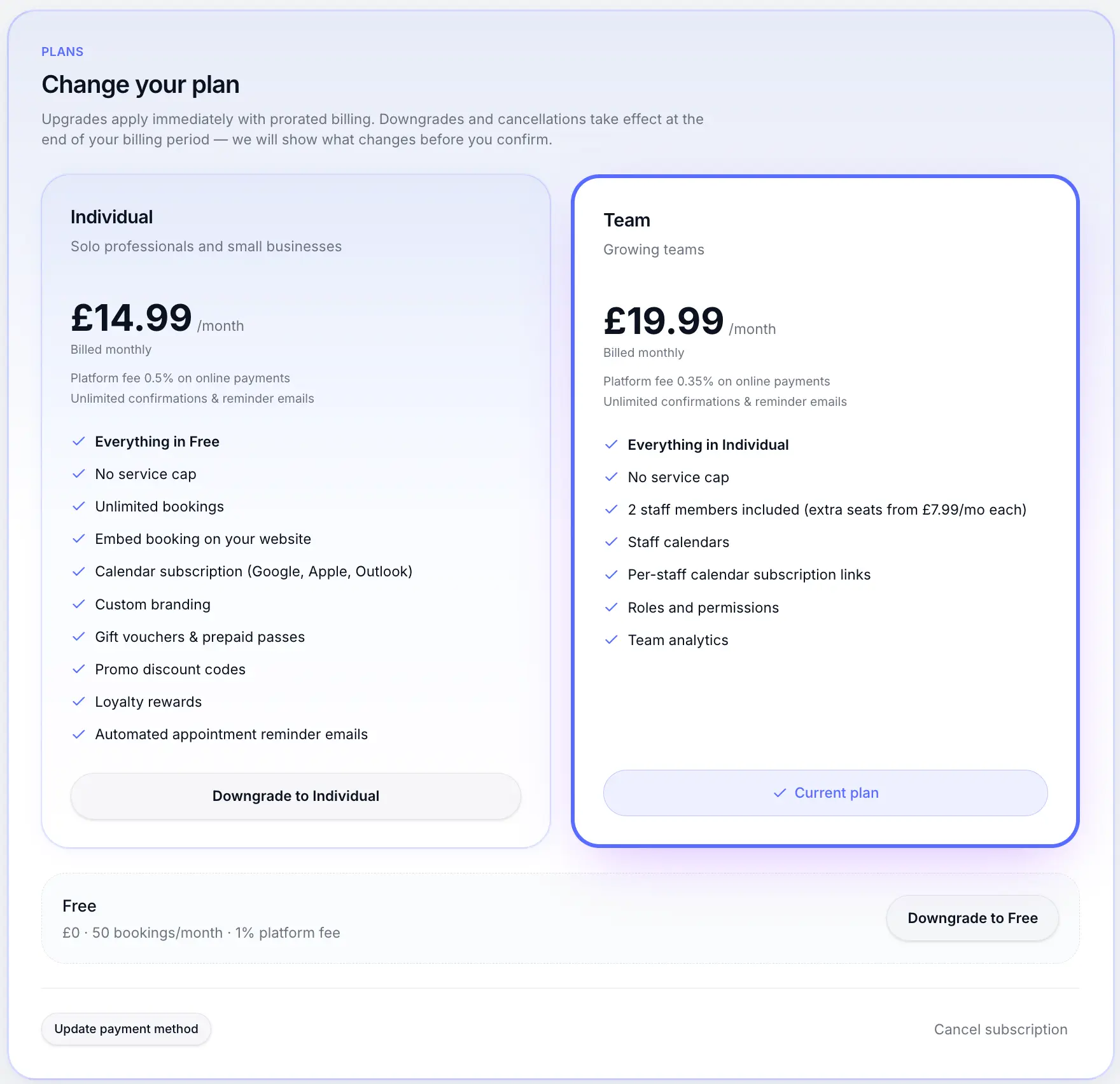
Before you start
Upgrade your plan
Open Billing
Look for: Billing
Choose a higher plan
Under Change your plan, click Upgrade on Individual or Team.
Look for: Upgrade
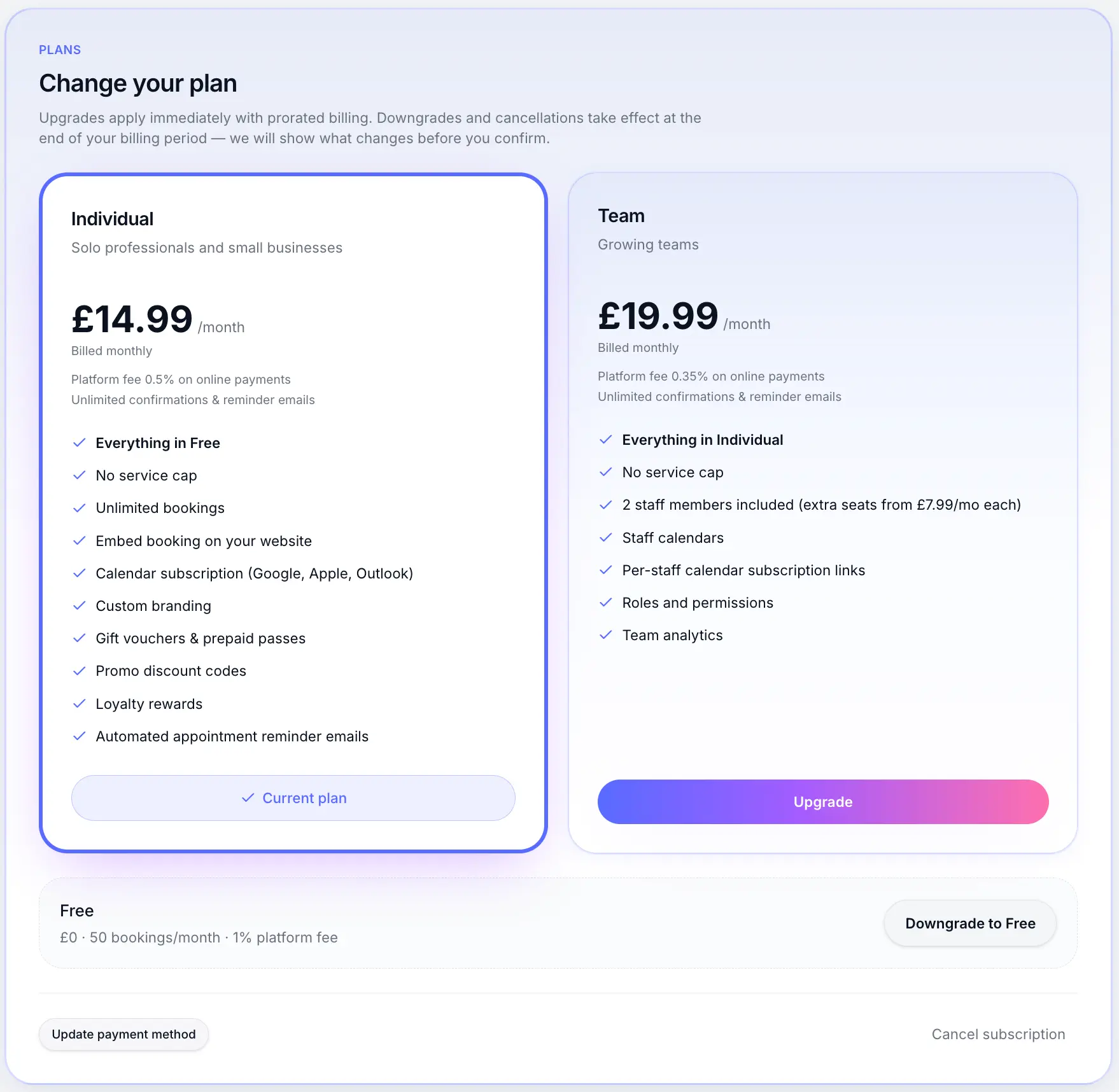
Upgrades from Free may open Stripe checkout. Complete checkout or confirm
New paid subscribers complete Stripe checkout. Existing subscribers may see a confirmation if moving Individual → Team.
Plan updates immediately
Your new limits and features unlock as soon as the change is confirmed.
Downgrade your plan
Click Downgrade on a lower plan
Look for: Downgrade
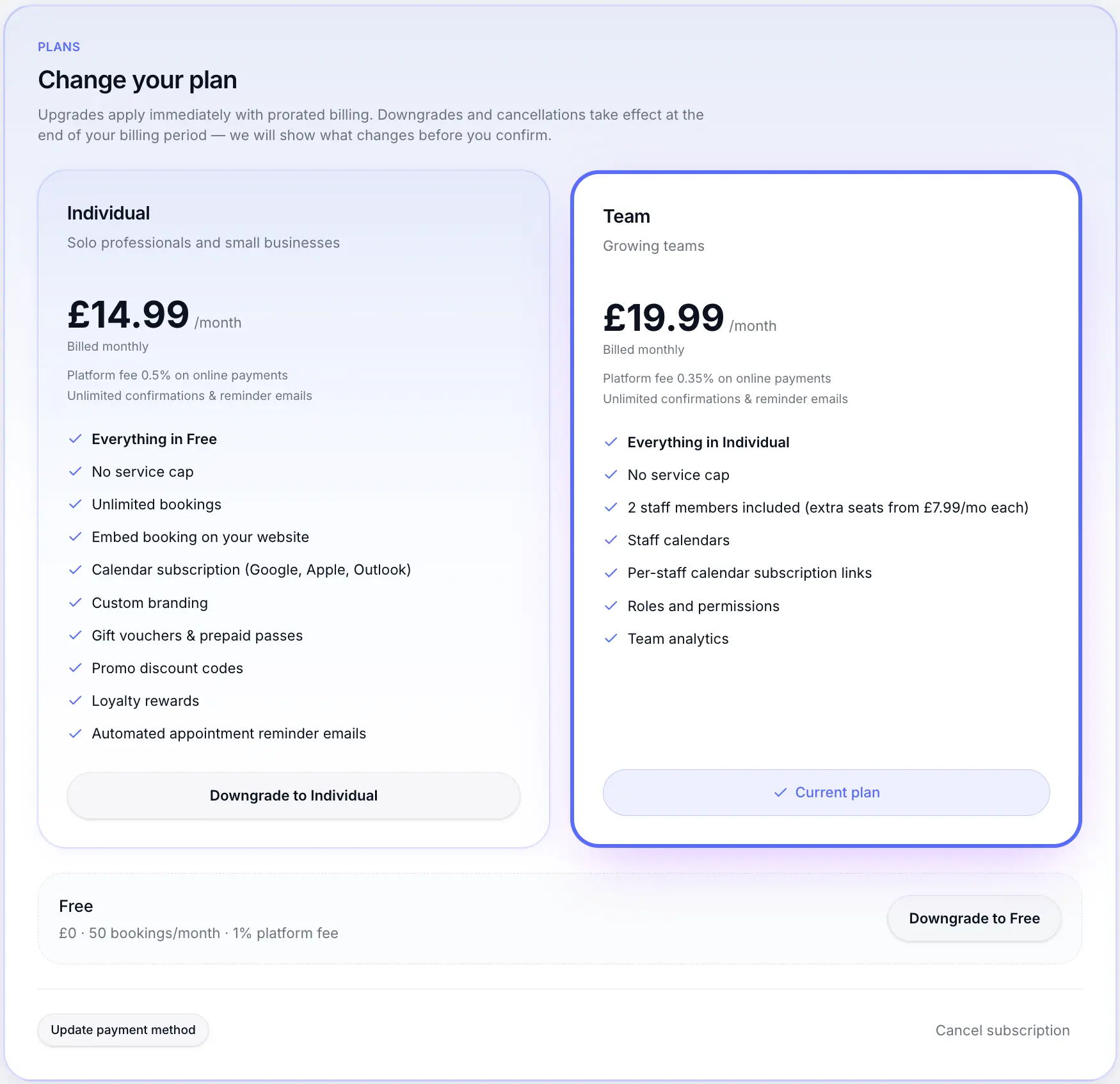
Downgrades are always scheduled — not instant. Review the impact preview
Sway lists what will change — e.g. staff to deactivate, services over the new limit, or extra locations to remove.
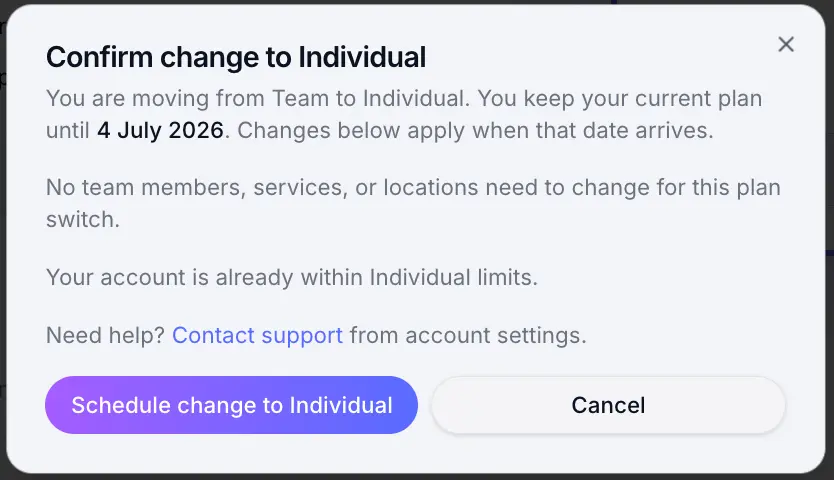
Read the impact list carefully before confirming. Confirm the scheduled change
Your current plan stays active until the date shown. A banner on Billing reminds you of the pending switch.
Note
To cancel a scheduled downgrade before it takes effect, use Cancel scheduled downgrade on the Billing page.
Cancel your subscription
Cancel subscription schedules a move to Free at the end of your billing period — the same as Downgrade to Free. You can also use Downgrade to Free directly from the Free plan card.
Open Billing and click Cancel subscription
Look for: Cancel subscription
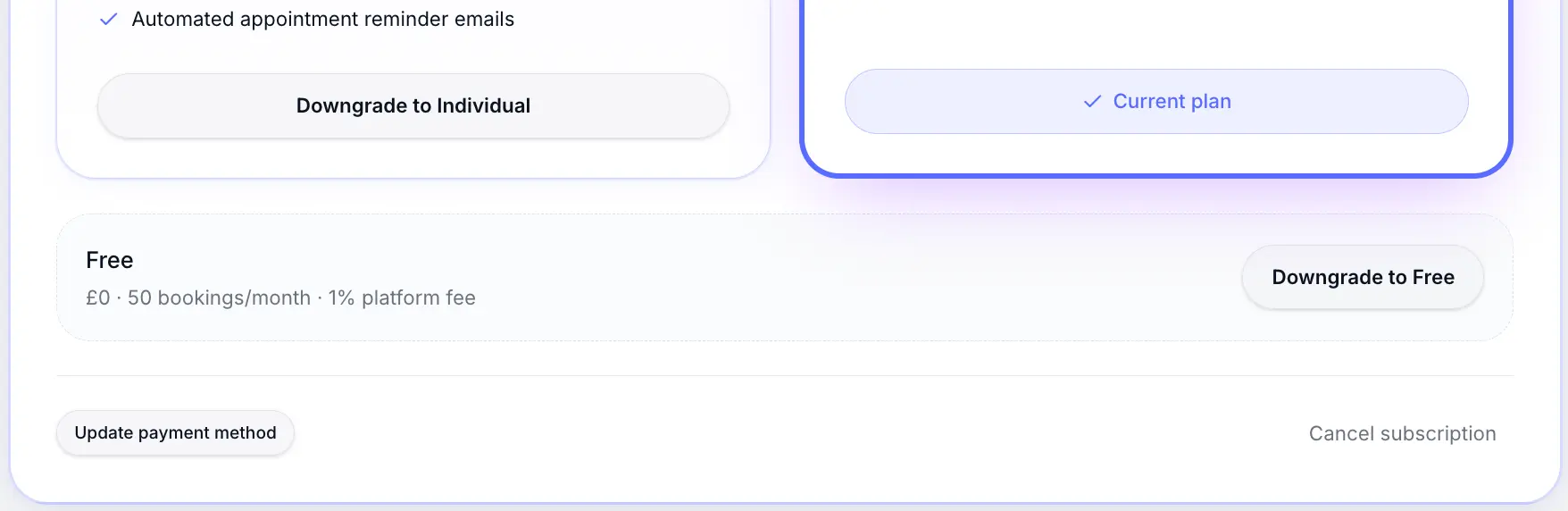
Cancellation moves you to Free at period end — not immediately. Confirm in the impact dialog
Review what changes when you return to Free, then confirm.
What happens next
After a scheduled downgrade takes effect, excess staff and services are deactivated automatically. Existing bookings are kept. Upgrade again anytime to restore limits.
Common questions
Frequently asked questions
Yes. Upgrades are prorated — Stripe adjusts your subscription when you move to a higher plan.
Related articles
Plans & billing
Sway plans compared
Compare Free, Individual, and Team plans — features, limits, platform fees, and which plan fits your business.
Plans & billing
Plan limits
Staff seats, monthly bookings, locations, and other limits by plan.
Settings
Closing your account
Permanently delete your business workspace, personal workspace, or your entire Sway account.
Still need help?
If this article didn't answer your question, search the help centre or contact our support team.
Sign in to open a tracked support ticket, or use the contact form.