

Sharing your booking page link
Find your public booking URL in Business profile and share it with customers.
Quick answer: Your booking page URL is set from your public slug (e.g. sway.app/your-business). Copy it from Business profile under Public presence and share it wherever customers book.
Overview
Every business has a fixed public URL based on your slug. You cannot edit the URL in settings — copy it from Business profile and share it on social media, your website, email, or Google Business Profile.
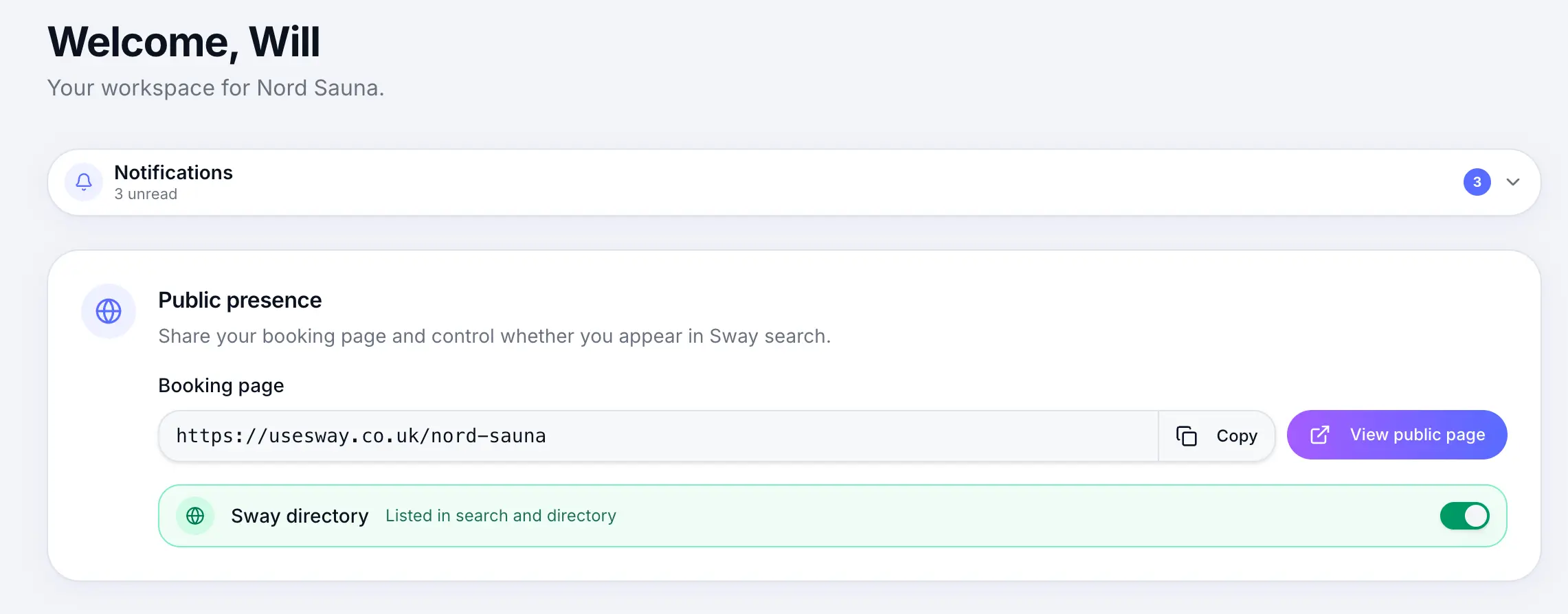
Step-by-step
Open Business profile
Look for: Business profile
Find your booking page URL
Under Public presence, your full URL is shown with a Copy button.
Look for: Copy
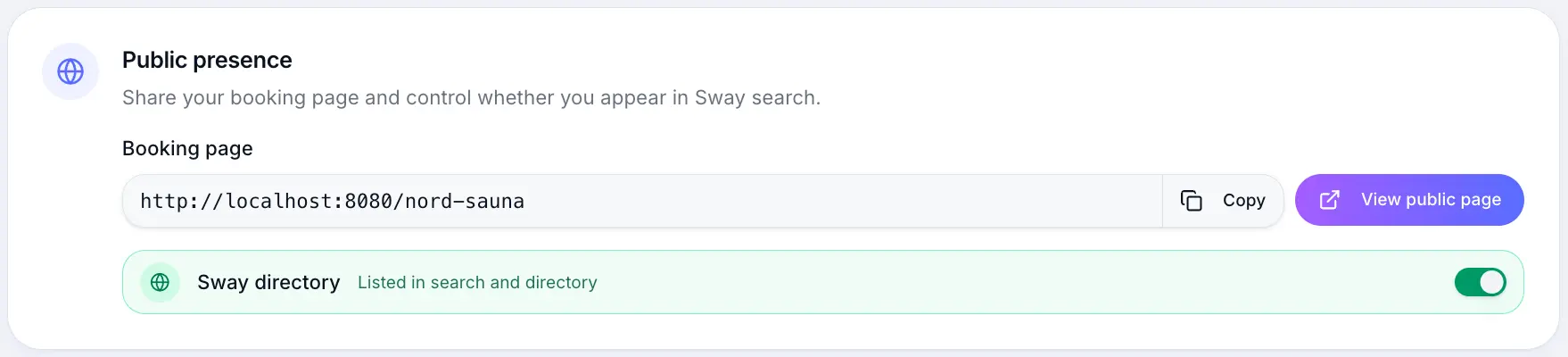
Copy and paste anywhere customers should book. Preview your page
Open the link in a new tab to see exactly what customers see.
Common questions
Frequently asked questions
Not from settings. Your slug is chosen during setup. Contact support if you need it changed.
Related articles
Getting started
Your public booking page
Share your booking link and understand what customers see when they book online.
Settings
Business profile settings
Name, photos, contact details, locations, and public presence for your booking page.
Settings
Embedding booking on your website
Add the Sway booking widget to your existing website (Individual plan and above).
Still need help?
If this article didn't answer your question, search the help centre or contact our support team.
Sign in to open a tracked support ticket, or use the contact form.