

Fixed session services
Create classes and events with fixed weekly start times and optional capacity.
Quick answer: Fixed session services run at the same times each week — ideal for classes, workshops, and recurring group sessions.
Before you start
- Business hours configured
Overview
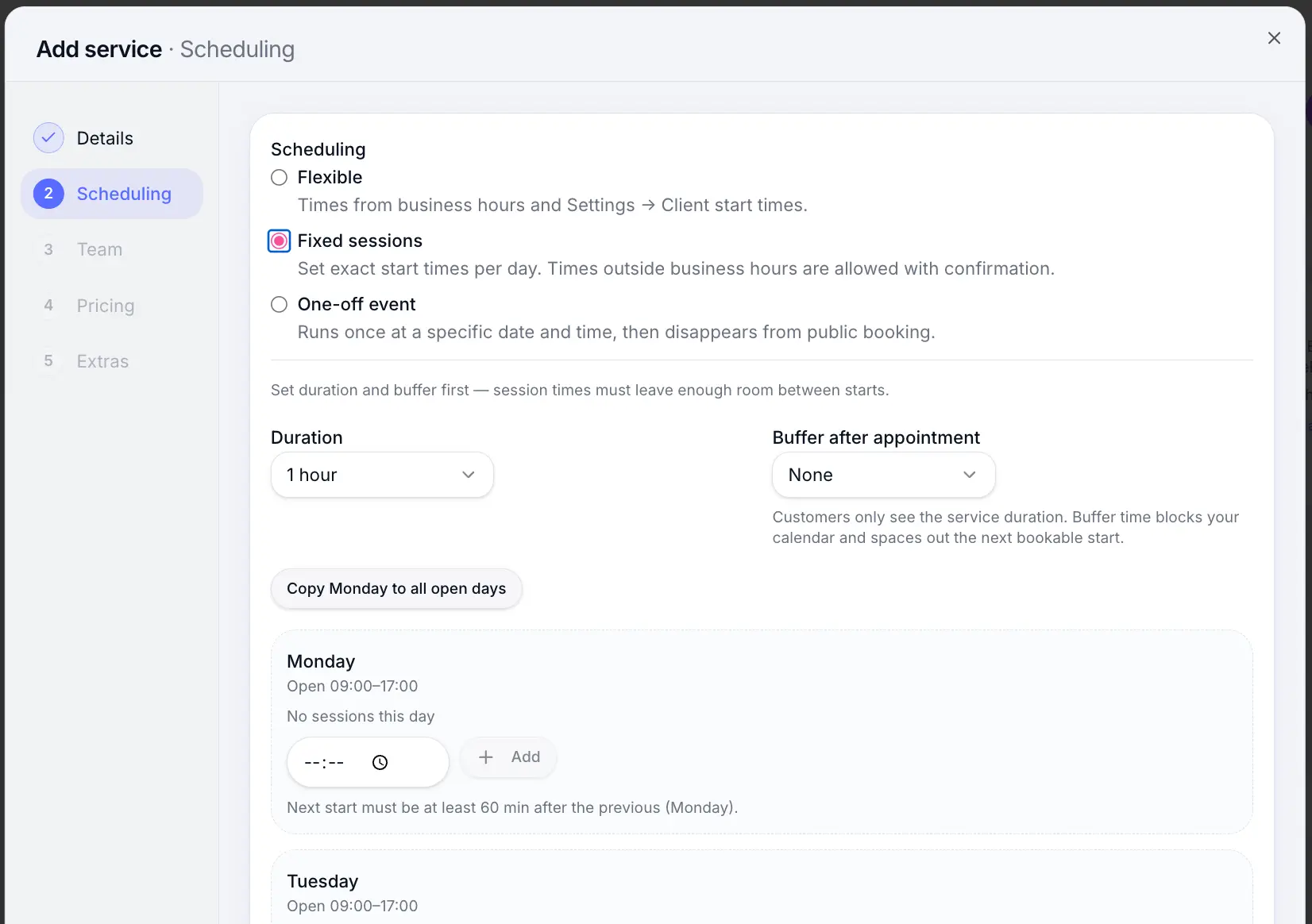
Unlike flexible appointments, fixed sessions use set start times per weekday — e.g. every Tuesday at 10:00 and Thursday at 18:00. Customers pick from those session times rather than any slot in your day.
- Set session times per weekday
- Copy one day's times to all open days
- Optional end date to stop repeating
- Supports 1:1 or group capacity
- Compatible with waitlist when full
Before you start
Step-by-step
Add or edit a service
Look for: Add service
Select Fixed sessions scheduling
Look for: Fixed sessions
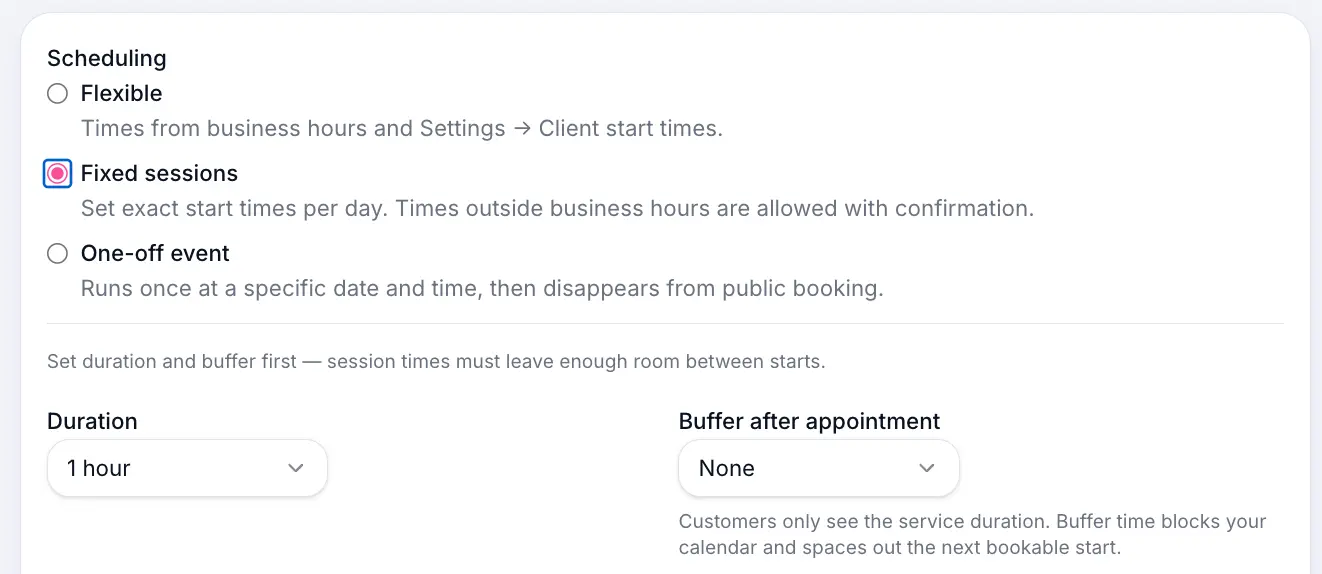
Choose Fixed sessions for classes and recurring events. Add session times per weekday
Use the session times editor to add start times for each day the service runs.
Look for: Session times
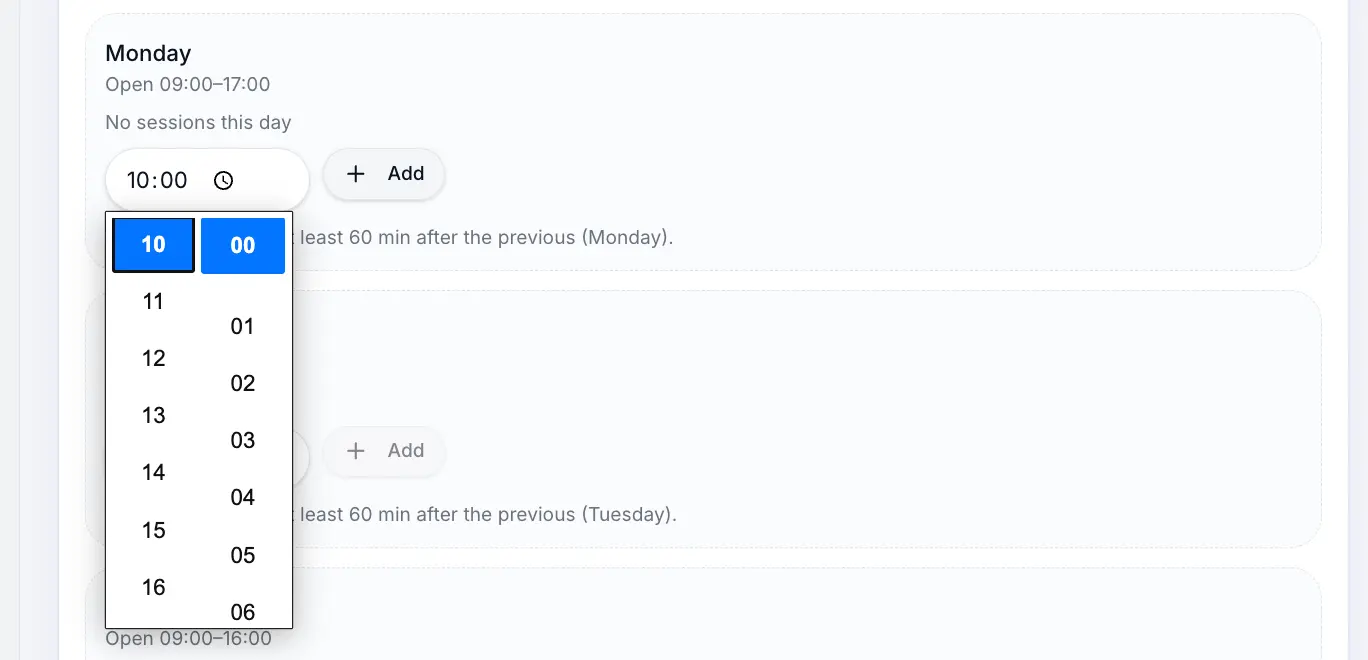
Add one or more start times per weekday. Copy times to all open days (optional)
If the same session times apply every day you're open, add them on one weekday first, then click Copy Monday to all open days (or the first open day shown) to fill the rest in one step. Skip this if each day has different times.
Look for: Copy to all open days
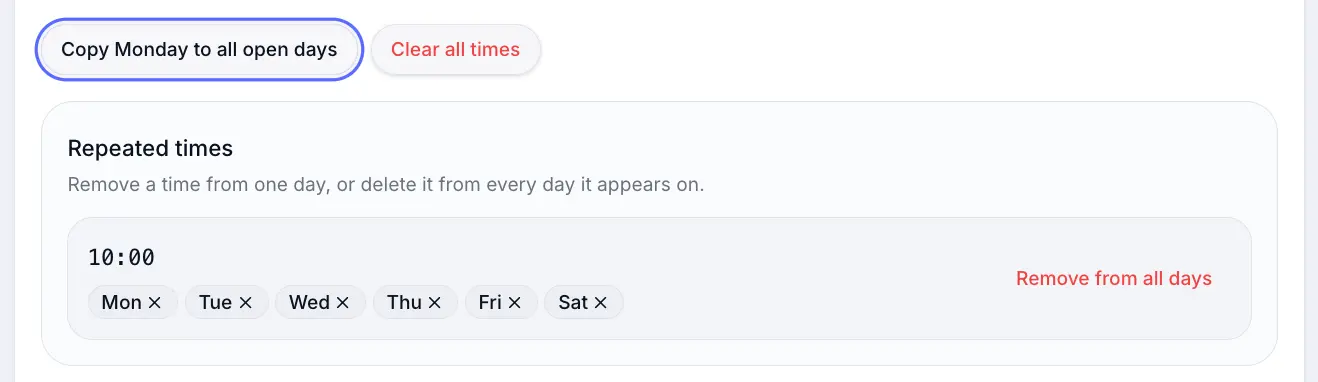
Use this shortcut when every open day shares the same session times. Set capacity if running a group
Under booking mode, choose capacity and set the maximum attendees per session.
Look for: Capacity
Save the service
Look for: Save
What happens next
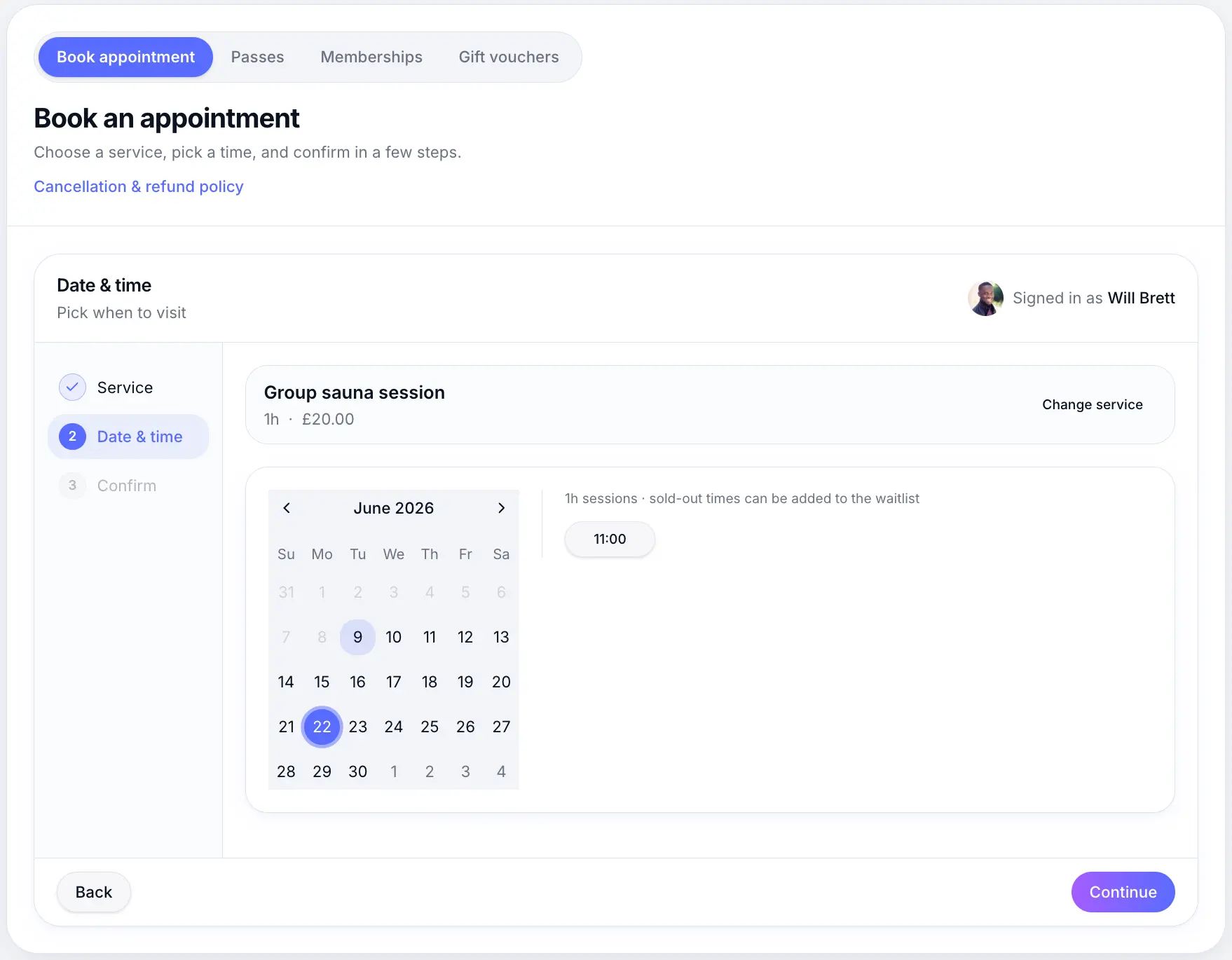
Customers see your fixed session times on the booking page. When a session is full, they can join the waitlist if you have it enabled.
Common questions
Frequently asked questions
Yes. Add your times on one open weekday, then use Copy to all open days above the editor. This copies that day's session times to every day your business is open.
Related articles
Services
Flexible scheduling services
Create a 1:1 service where customers pick any available time during your business hours.
Services
1:1 vs group bookings
Choose single booking per slot or multiple customers sharing the same start time.
Waitlist
Waitlist settings
Turn on waitlist, set minimum notice and re-notification cooldown.
Still need help?
If this article didn't answer your question, search the help centre or contact our support team.
Sign in to open a tracked support ticket, or use the contact form.