

Duration & buffer periods
Set how long a service takes and optional buffer time between appointments.
Quick answer: Duration sets appointment length. Buffer adds gap time after each booking for cleanup or travel between clients.
Overview
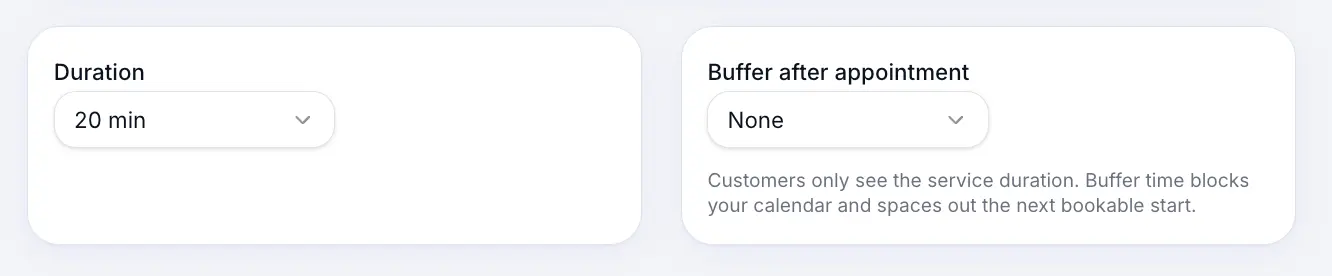
Duration and buffer are set on each service's Scheduling step. Duration blocks the calendar for the appointment length; buffer adds extra unavailable time afterward so you're not back-to-back.
Step-by-step
Edit a service
Look for: Services
Set duration
Choose a preset or custom duration in minutes — this is how long the appointment blocks on your calendar.
Look for: Duration
Add buffer (optional)
Buffer time is added after each booking. Useful for cleaning, notes, or travel between locations.
Look for: Buffer
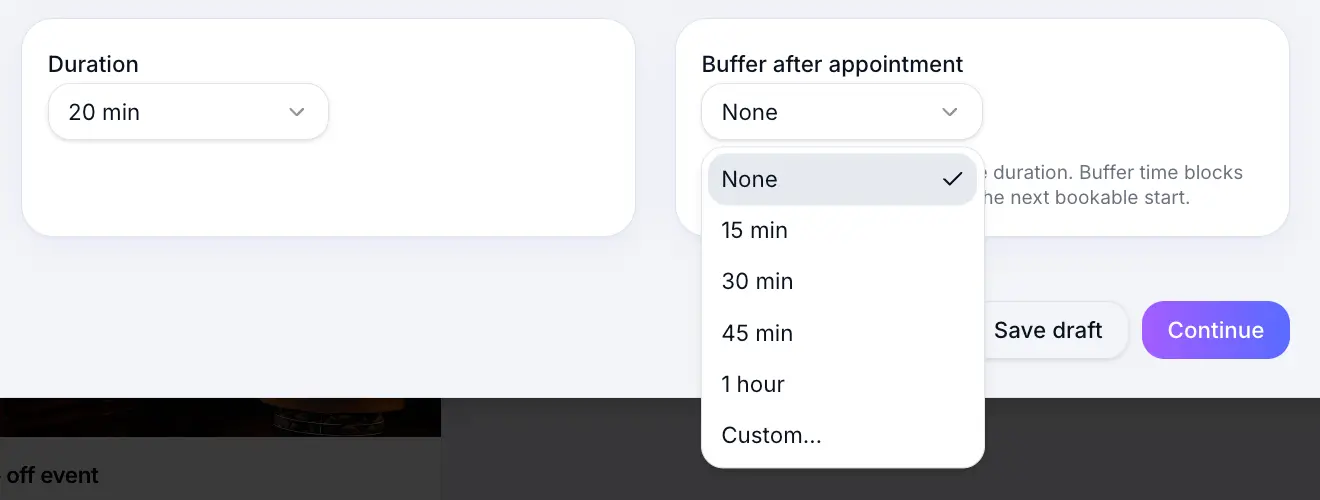
Buffer extends the blocked time after each appointment. Save the service
Look for: Save
See buffer on your calendar
Once the service is saved and booked, open Calendar. The event spans service time plus buffer — the main block is the appointment and the lighter strip below is the buffer period, which stays blocked so the next slot cannot start too soon.
Look for: Calendar
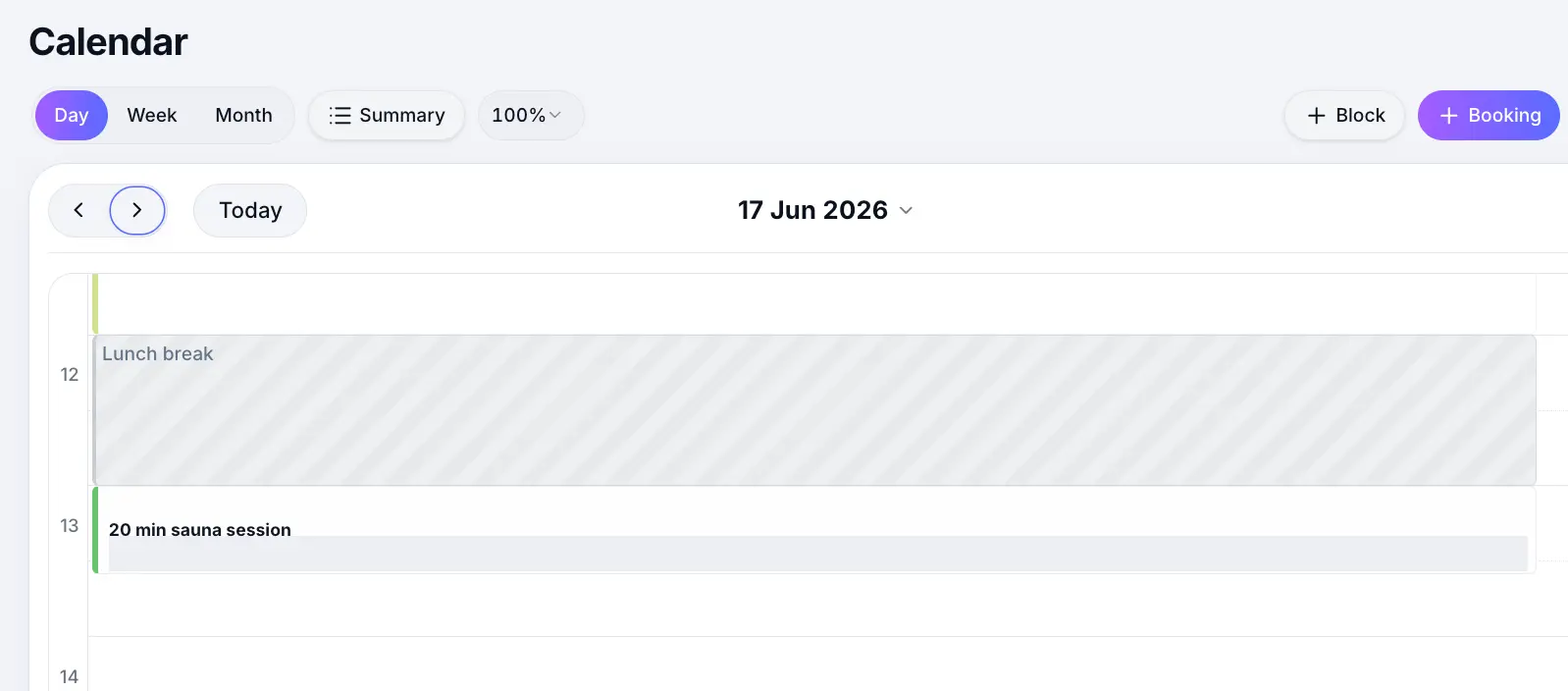
Buffer extends the calendar block beyond the appointment length.
Common questions
Frequently asked questions
Customers see the start time and service duration. Buffer is hidden but prevents the next slot starting too soon.
Related articles
Services
Flexible scheduling services
Create a 1:1 service where customers pick any available time during your business hours.
Settings
Smart booking
Pack your calendar by hiding start times that would leave awkward gaps.
Services
Fixed session services
Create classes and events with fixed weekly start times and optional capacity.
Still need help?
If this article didn't answer your question, search the help centre or contact our support team.
Sign in to open a tracked support ticket, or use the contact form.