

Per-service waitlist settings
Inherit, enable, or disable waitlist on individual services.
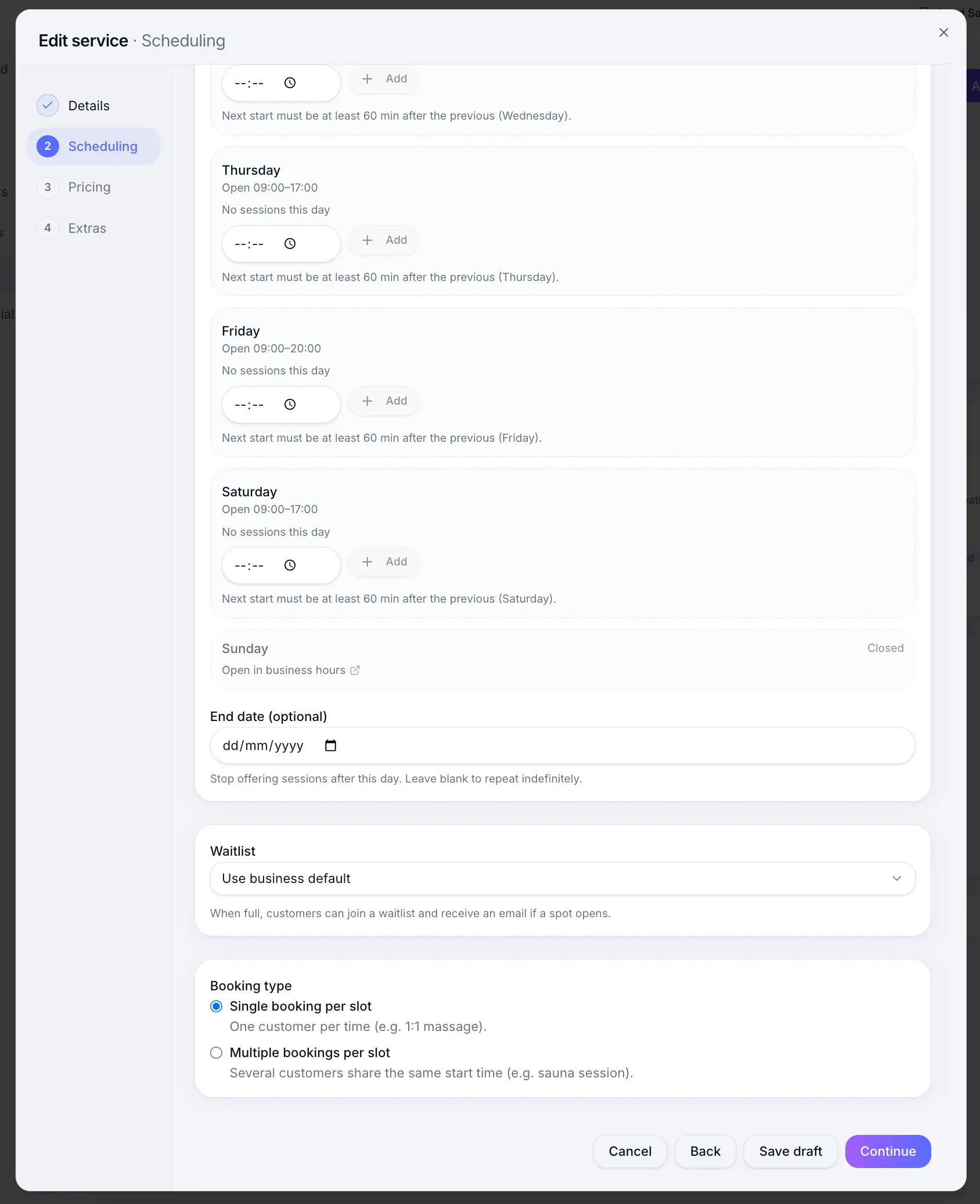
Quick answer: On the Scheduling step, Fixed sessions and One-off event services show a Waitlist dropdown — set Use business default, Enabled, or Disabled. Flexible services do not support per-service waitlist.
Before you start
- Waitlist enabled in Scheduling settings
Overview
Waitlist defaults are set business-wide under Scheduling settings. Individual services can inherit that default or override it — useful when only some classes should offer a waitlist.
Before you start
Note
The Waitlist dropdown only appears when the service uses Fixed sessions or One-off event scheduling. Flexible appointments do not show this control.
Step-by-step
Edit a service
Look for: Services
Confirm scheduling type
Select Fixed sessions or One-off event at the top of the Scheduling step. The Waitlist section appears below your session times or event date.
Look for: Scheduling
Set Waitlist
Choose Use business default to follow Scheduling settings, Enabled to always allow waitlist, or Disabled to turn it off for this service.
Look for: Waitlist
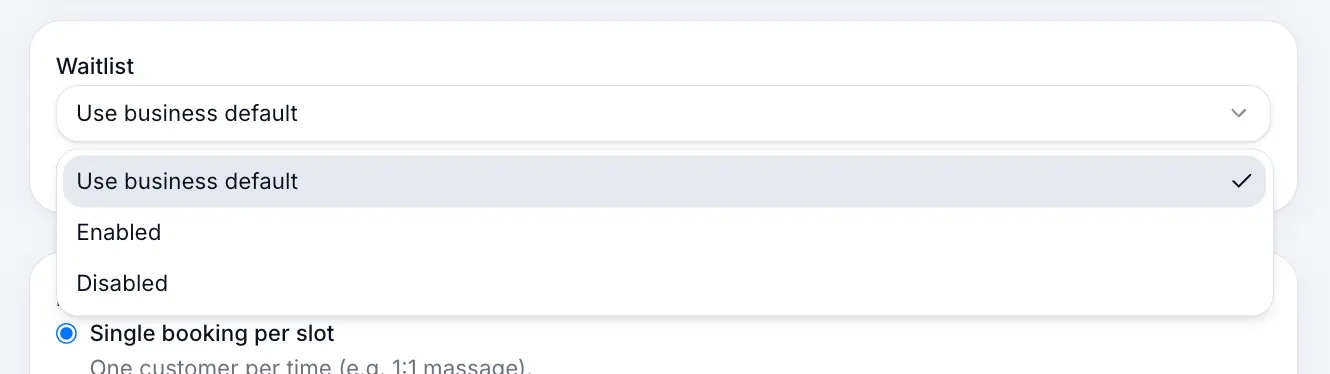
Only session and capacity services support waitlist. Save the service
Look for: Save
Common questions
Frequently asked questions
Fixed session and capacity (group) services when the session is full.
Related articles
Waitlist
Waitlist settings
Turn on waitlist, set minimum notice and re-notification cooldown.
Waitlist
Waitlist overview
Let customers join a waitlist when a session or event is full, and notify them when a spot opens.
Services
Fixed session services
Create classes and events with fixed weekly start times and optional capacity.
Still need help?
If this article didn't answer your question, search the help centre or contact our support team.
Sign in to open a tracked support ticket, or use the contact form.