

Attaching intake forms
Require questionnaires or disclaimers when customers book specific services.
Quick answer: Attach a published form to a service on the Extras step. An attached form is flagged if it is left incomplete. Turn on Require before booking to collect it from the person booking before they can confirm.
Before you start
- At least one published customer form
Overview
Intake forms collect health questionnaires, waivers, or custom questions before or after a booking. Attach forms per service so only relevant customers see them.
- Attach forms on the service Extras step
- Turn on Require before booking to collect the form before the booking can be confirmed
- Collect other answers during checkout or via email link
- View responses from the customer's booking record
Before you start
Note
Forms must be created and published under Forms before you can attach them to a service.
Step-by-step
Create and publish a form
Go to Forms, create your questionnaire or disclaimer, then publish it.
Look for: Forms
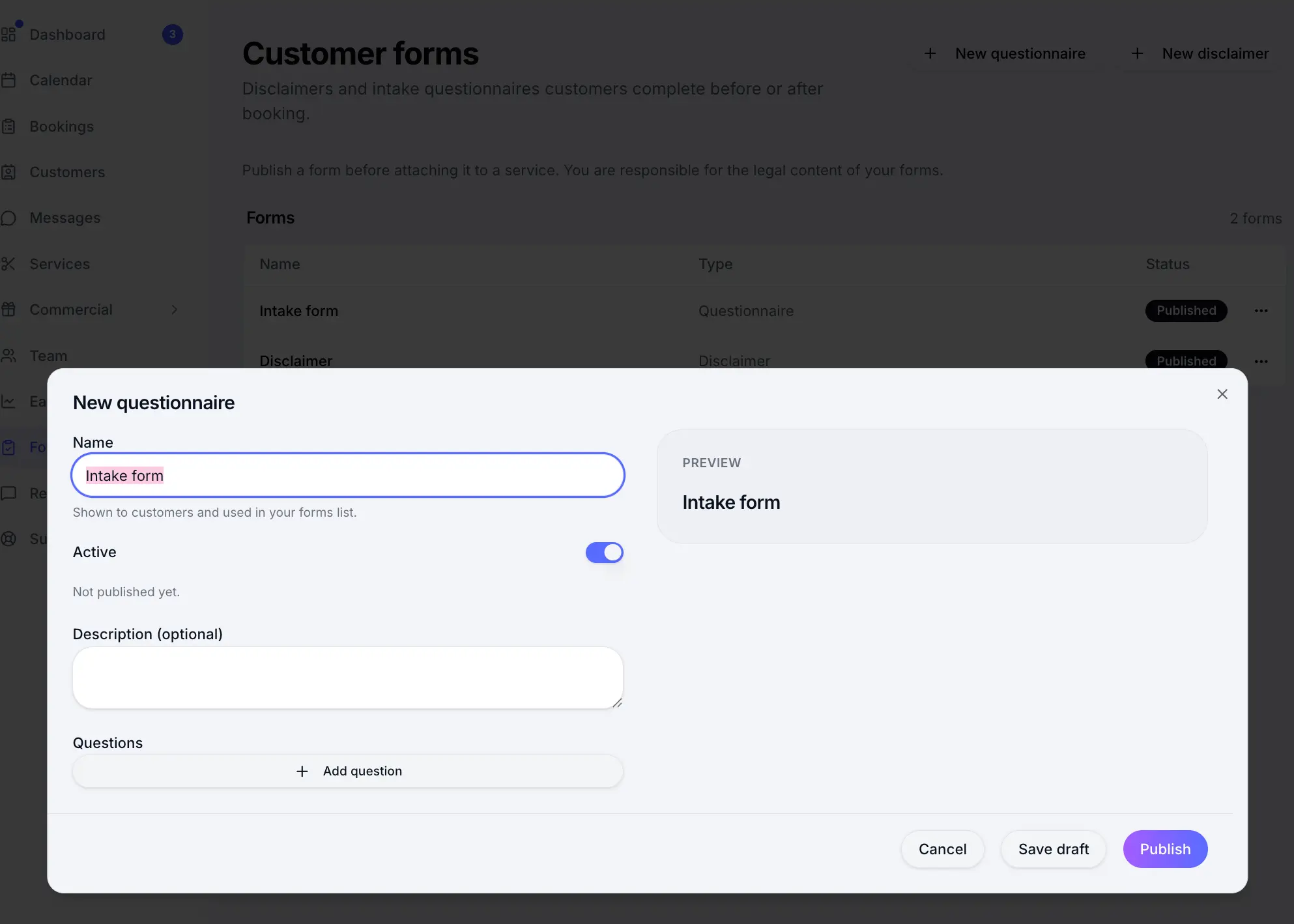
Publish the form before attaching it to a service. Edit a service and open Extras
Look for: Extras
Select a customer form
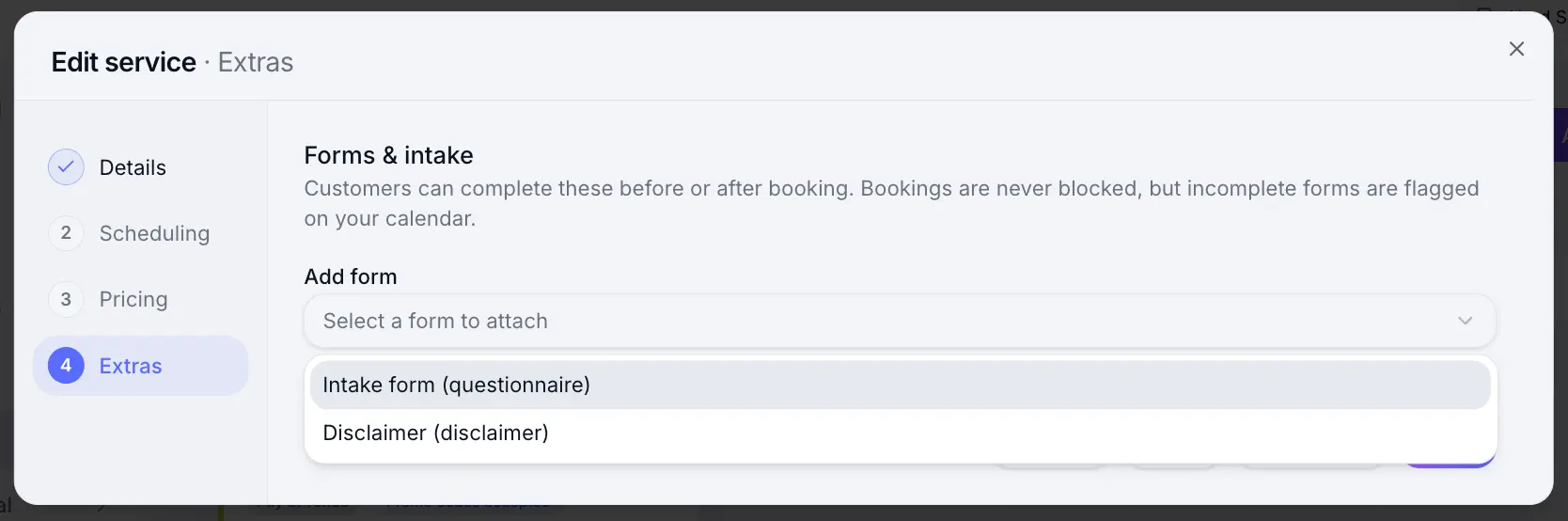
Use Add form and choose the published form to attach. Remove it to stop requiring it on this service.
Look for: Add form
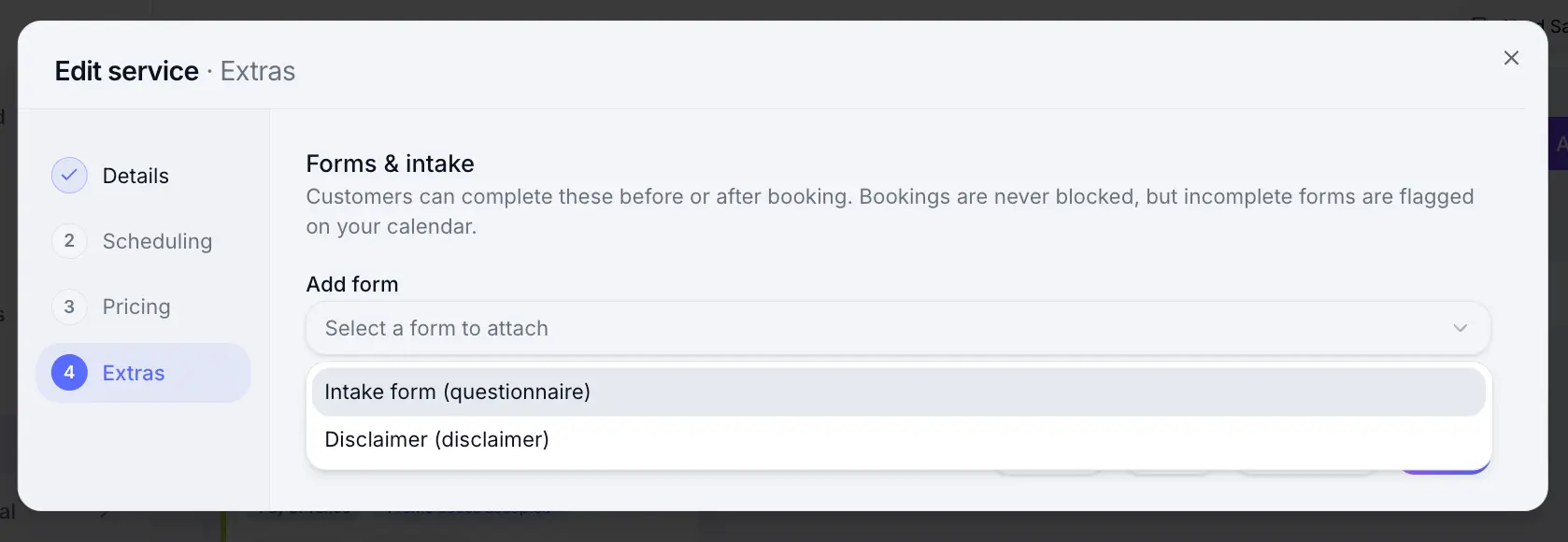
Only published forms appear in the list. Save the service
Look for: Save
What customers see
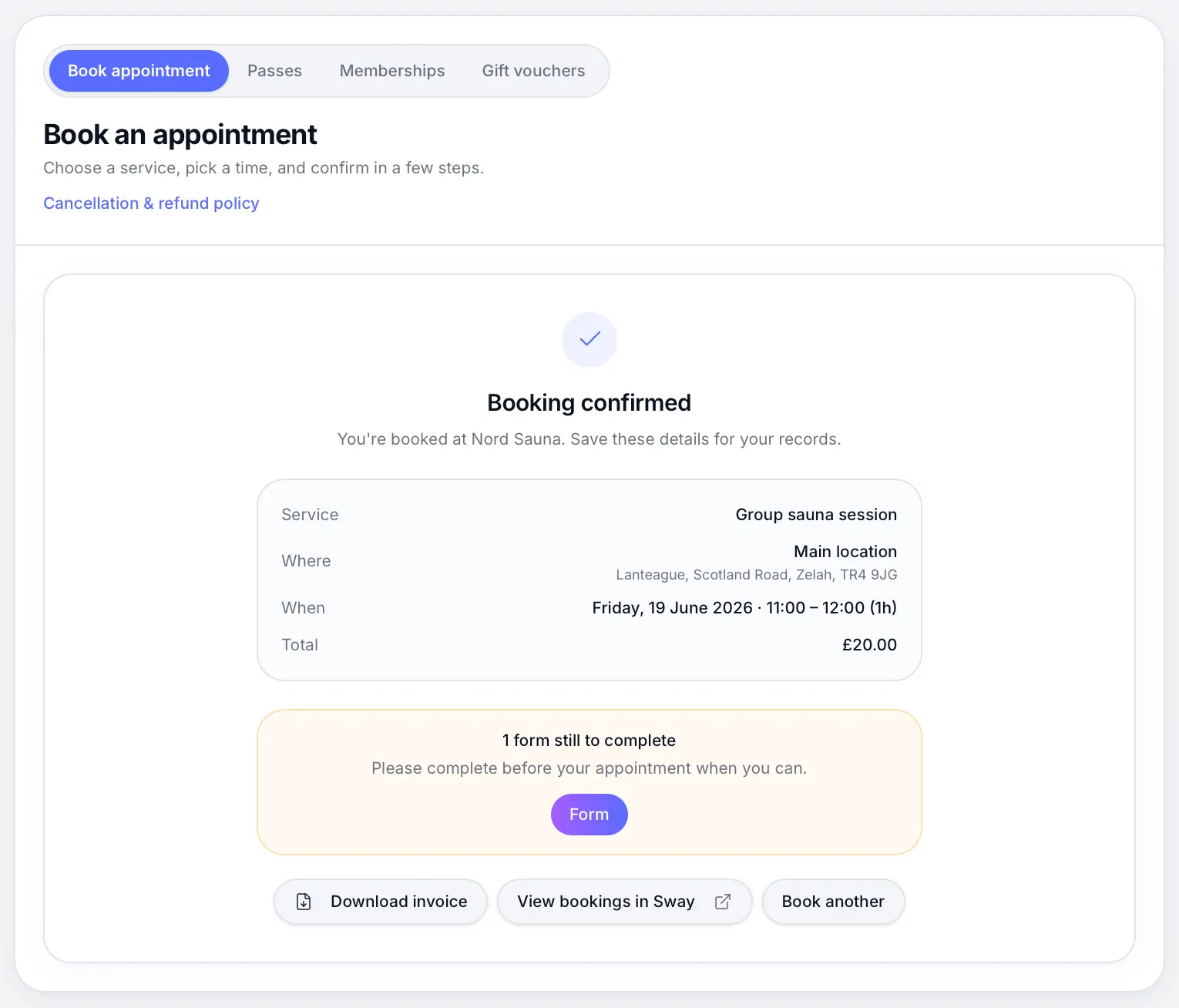
With Require before booking on, the form appears as a step in the booking wizard. The person booking must finish it before they can confirm. On a group booking, everyone else still receives a link after booking. Other attached forms can be completed from that link, and they are flagged if left incomplete. Bookings your team creates are not blocked; those forms stay pending until the customer finishes them or an admin waives them.
Common questions
Frequently asked questions
Yes. Each service can have its own attached forms, or none.
Related articles
Still need help?
If this article didn't answer your question, search the help centre or contact our support team.
Sign in to open a tracked support ticket, or use the contact form.