

Flexible scheduling services
Create a 1:1 service where customers pick any available time during your business hours.
Quick answer: Flexible services let customers book any open slot within your business hours, using your client start time grid.
Before you start
- Business hours configured in Scheduling settings
Overview
Use flexible scheduling for appointments like haircuts, massages, or consultations — where each booking takes a slot from your open hours rather than a fixed class time.
- Customers see slots based on your business hours and client start times
- Works with buffer periods between appointments
- Supports 1:1 (exclusive) or group capacity modes
- Does not support waitlist (use fixed sessions for waitlist)
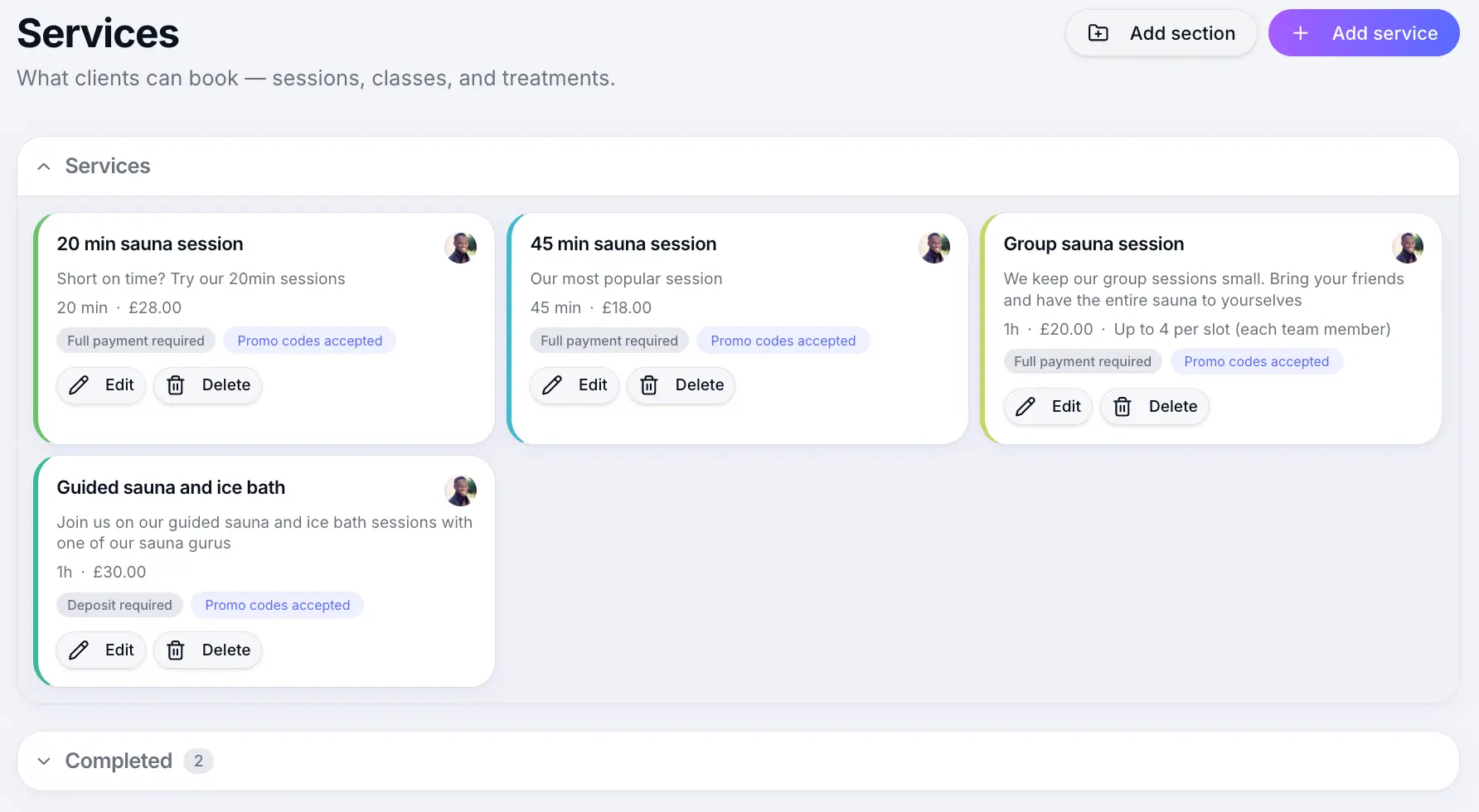
Before you start
Note
Set your business hours and client start times under Settings → Scheduling before creating flexible services.
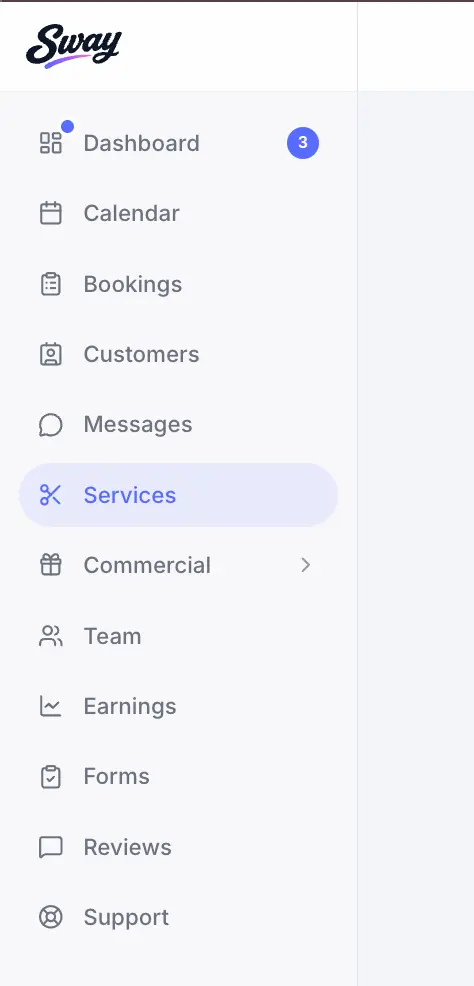
Step-by-step
Open Services and add a service
Click Add service to open the service form.
Look for: Add service
Choose Flexible scheduling
On the Scheduling step, select Flexible as the scheduling type.
Look for: Flexible
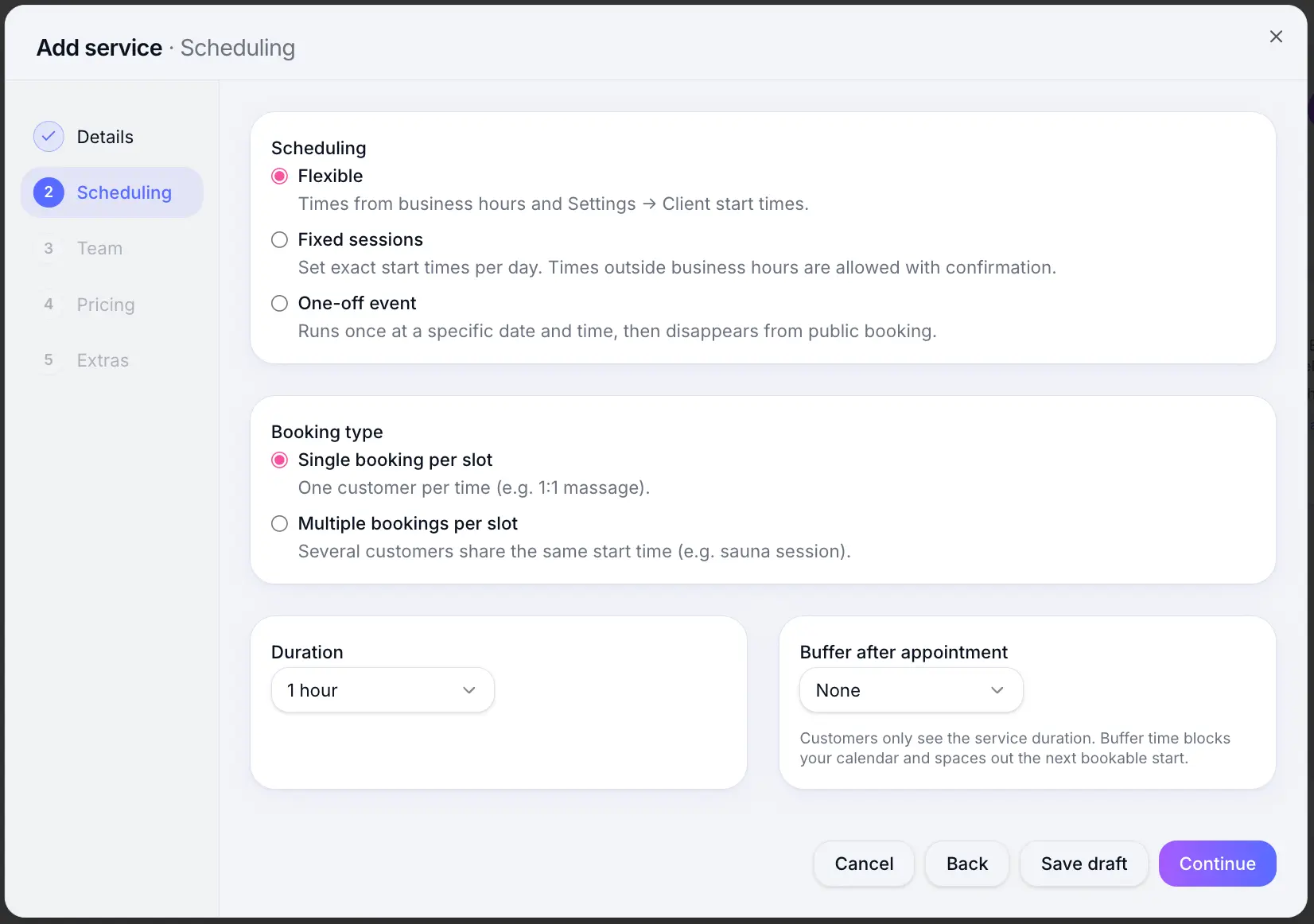
Select Flexible for appointment-style services. Set duration and buffer
Choose how long the appointment lasts and any buffer time after it.
Look for: Duration
Save the service
Look for: Save
What happens next
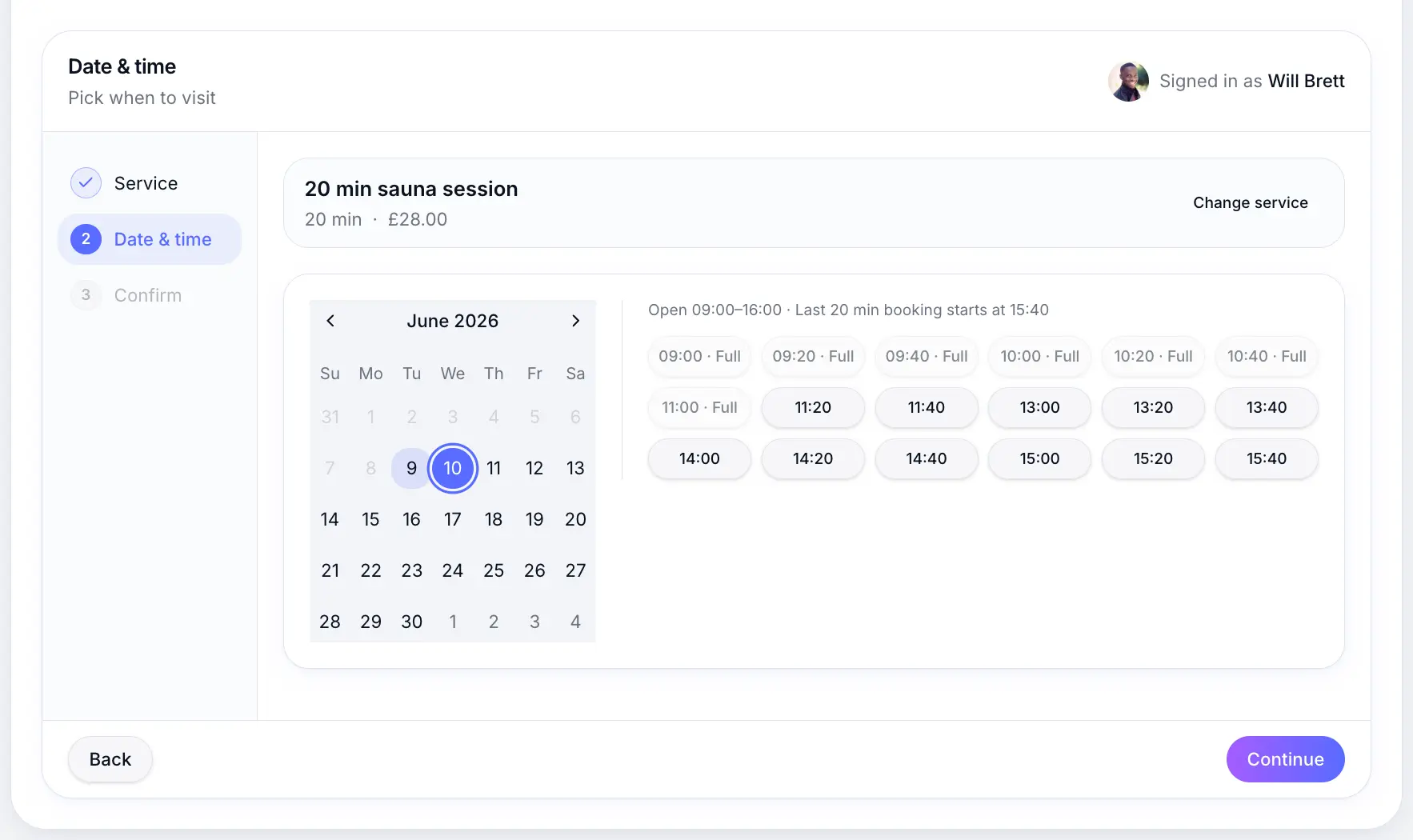
The service appears on your public booking page. Customers pick a date, then choose from available start times generated from your business hours.
Common questions
Frequently asked questions
No. Waitlist only works with fixed-session and one-off services.
Related articles
Still need help?
If this article didn't answer your question, search the help centre or contact our support team.
Sign in to open a tracked support ticket, or use the contact form.