

Managing services
View, organise, and publish services on your booking page.
Quick answer: Services are what customers book. Add services from the Services page, configure scheduling and pricing, then publish — only active services appear on your booking page.
Overview
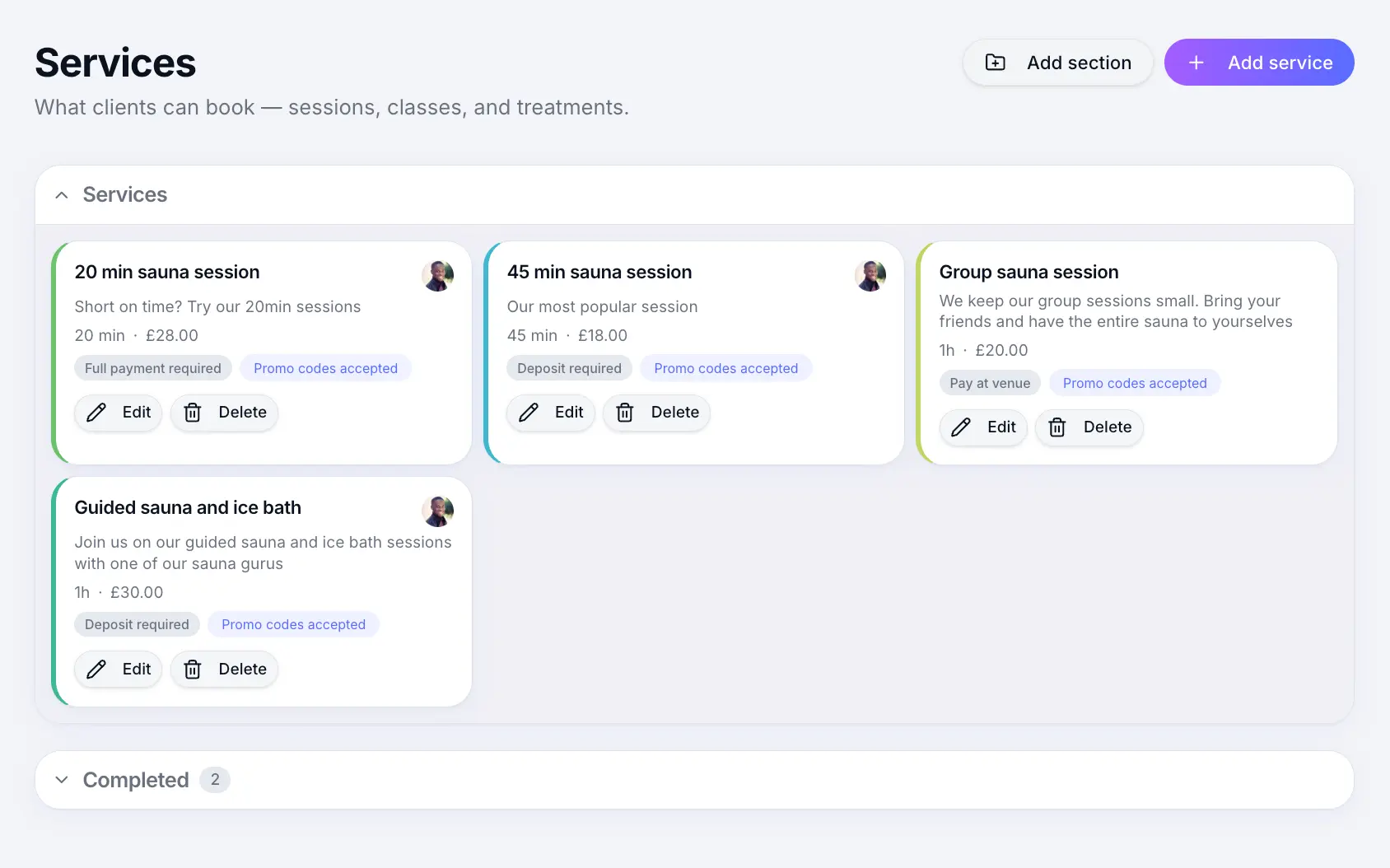
Each service defines what you offer — name, price, duration, scheduling type, and payment options. Published services appear on your public booking page; drafts stay hidden while you set up.
- Published services are bookable online
- Drafts are saved but hidden from customers
- Grouped into sections on your booking page
- Free plan limited to 5 active services
Before you start

Step-by-step
Open Services
Look for: Services
Add a new service
Click Add service and work through Details, Scheduling, and Pricing steps.
Look for: Add service
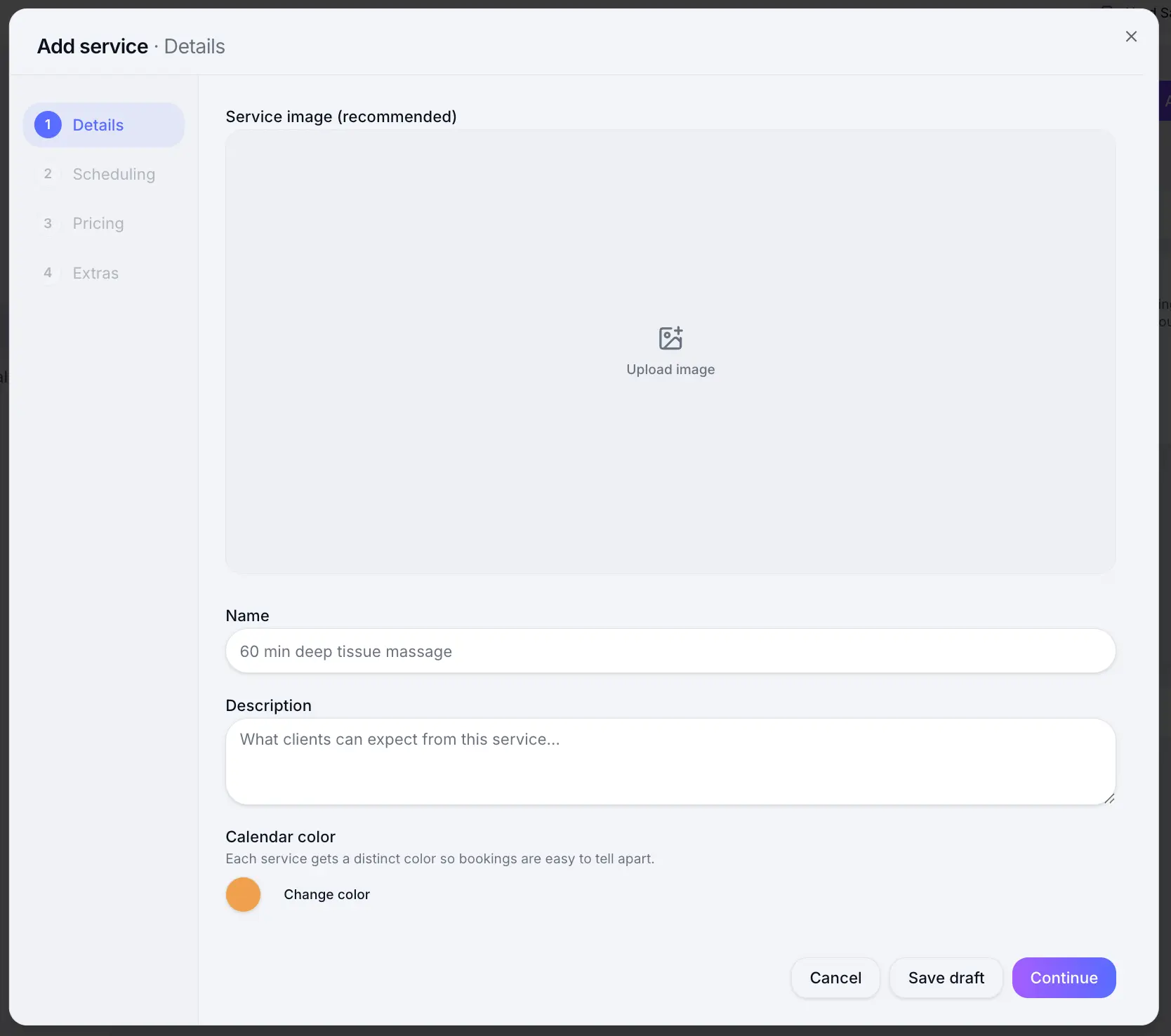
Start here to create a new bookable service. Save as draft or publish
Save draft to finish later without showing the service publicly. Save to publish when ready for customers.
Look for: Save
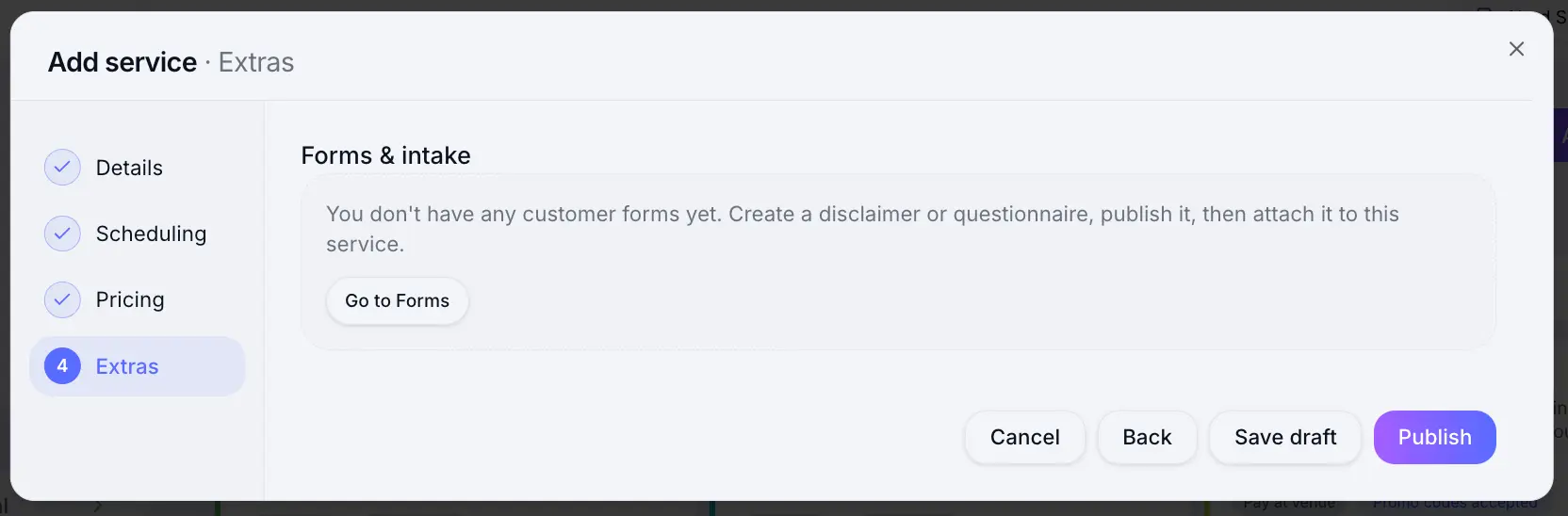
Drafts stay hidden until you publish. Edit or deactivate a service
Use the menu on any service card to edit details or remove a service you no longer offer.
What happens next
Published services appear on your booking page grouped by section. Configure scheduling type and payment for each service individually.
Flexible scheduling servicesRead →Payment optionsRead →Common questions
Frequently asked questions
Drafts are saved in Sway but hidden from your booking page. Published (active) services are bookable online.
Related articles
Services
Grouping services into sections
Organise services into sections on your public booking page.
Services
Flexible scheduling services
Create a 1:1 service where customers pick any available time during your business hours.
Plans & billing
Plan limits
Staff seats, monthly bookings, locations, and other limits by plan.
Still need help?
If this article didn't answer your question, search the help centre or contact our support team.
Sign in to open a tracked support ticket, or use the contact form.