

Light / dark theme
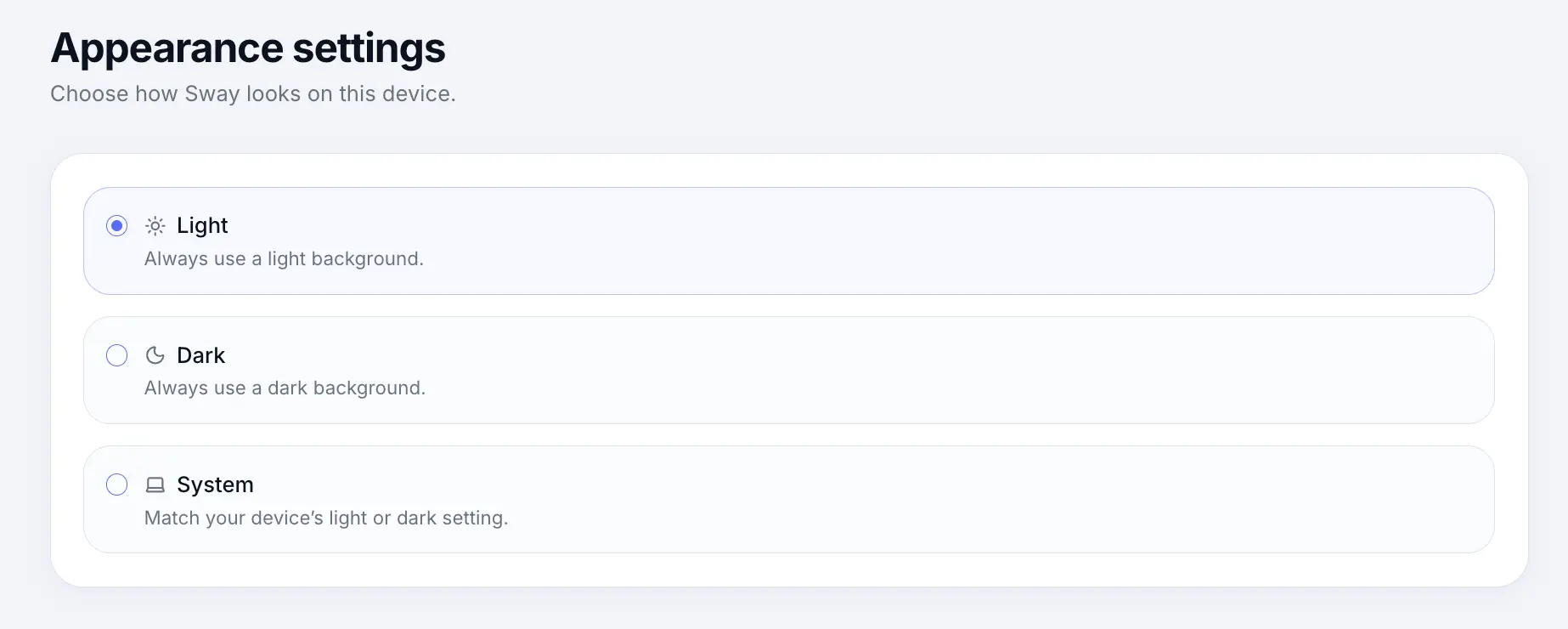
Choose light, dark, or system appearance for the Sway app.
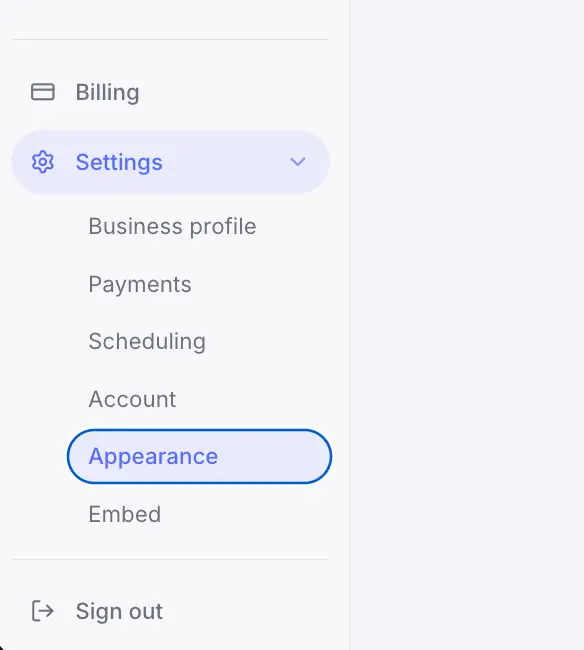
Quick answer: Open Settings → Appearance to choose Light, Dark, or System. Your preference is saved to this browser and applies across business, staff, and personal workspaces.
Overview
Sway supports light and dark themes plus a System option that follows your device setting. The choice is personal to your browser — it does not change what customers see on your public booking page.
- Light — always use a light background
- Dark — always use a dark background
- System — match your device light or dark setting
- Saved locally in your browser
Before you start
Step-by-step
Open Settings → Appearance
Look for: Appearance
Choose a theme
Select Light, Dark, or System. The app updates immediately.
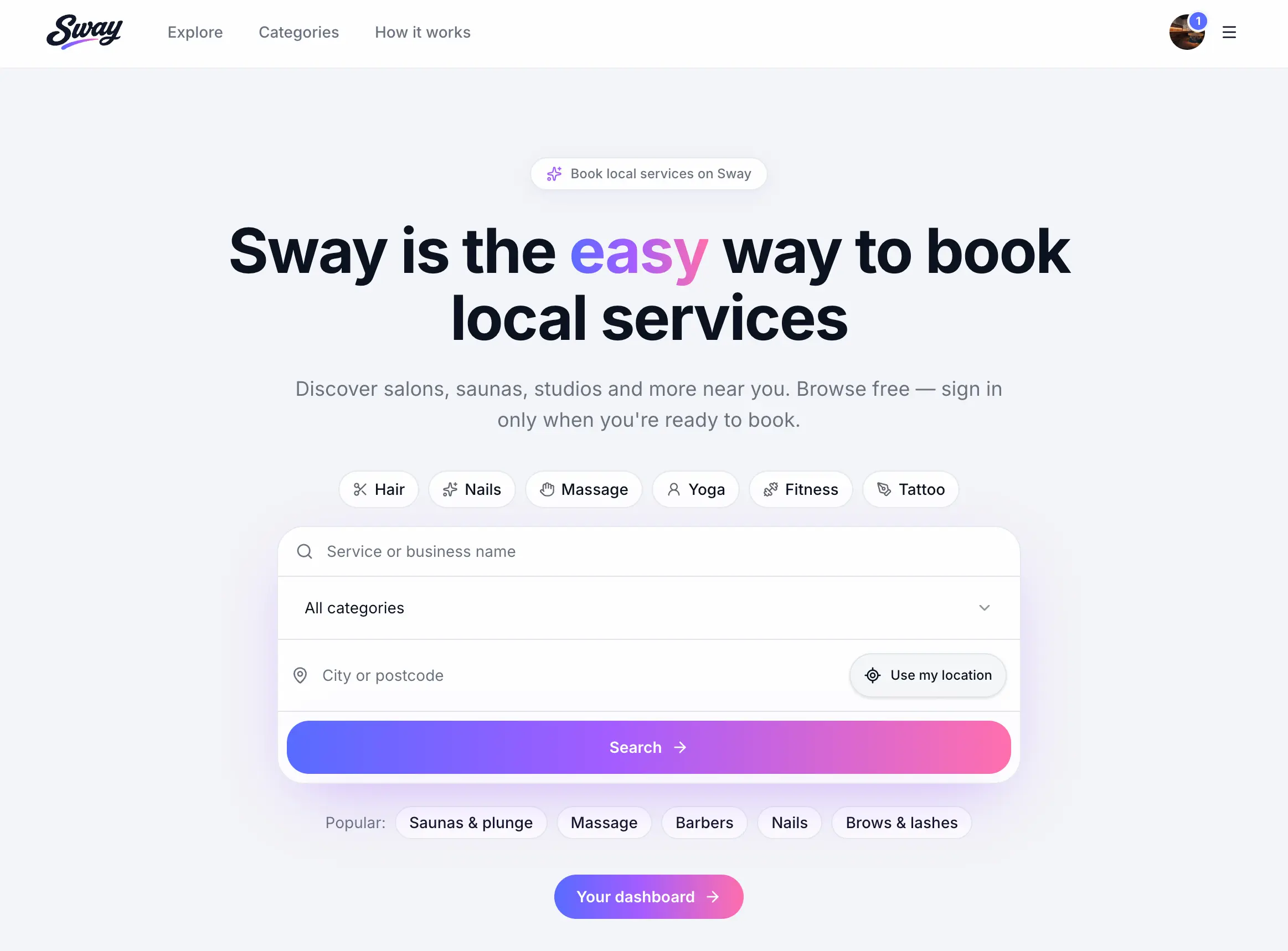
Light theme uses bright backgrounds across the app. 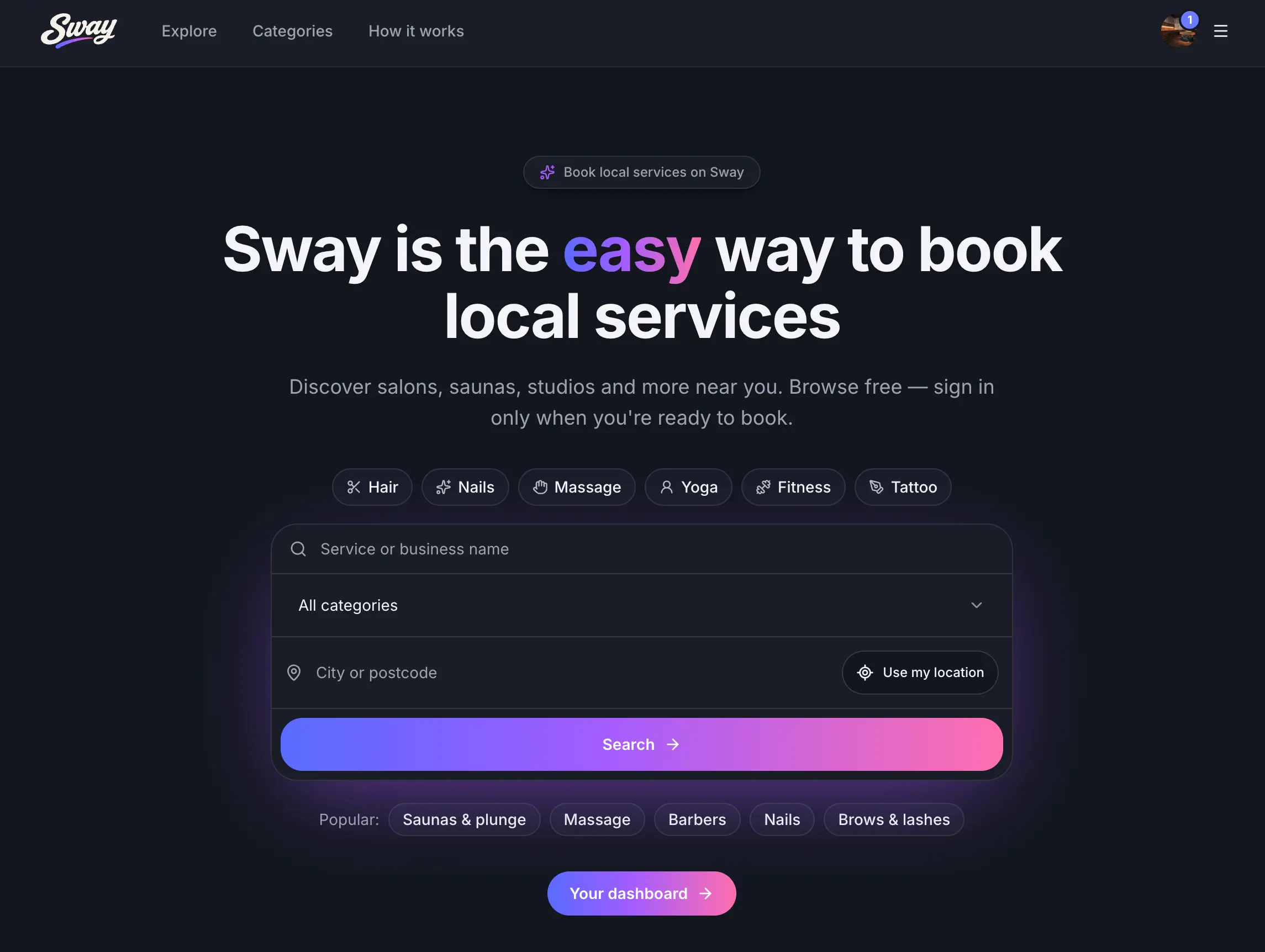
Dark theme uses dark backgrounds across the app. Use the quick toggle (optional)
Some pages include a compact theme toggle in the header for faster switching without opening settings.
Common questions
Frequently asked questions
No. Theme only changes the Sway app interface for you and your team. Your public booking page keeps its own styling.
Related articles
Still need help?
If this article didn't answer your question, search the help centre or contact our support team.
Sign in to open a tracked support ticket, or use the contact form.