

Recurring breaks
Shared lunch breaks and recurring time blocks for the whole business.
Quick answer: Add a recurring break under Scheduling → Time off & blocks to close the same time slot every week — for example a shared lunch hour for the whole team.
Overview
Recurring breaks block the same time window on selected weekdays — useful for a business-wide lunch break or regular admin time. Blocks apply to every team member at once.
- Repeats on chosen days between a start and end date
- Blocks all staff during the break window
- Customers cannot book during blocked times
- For staggered lunch per person, use Team → Manage schedule instead
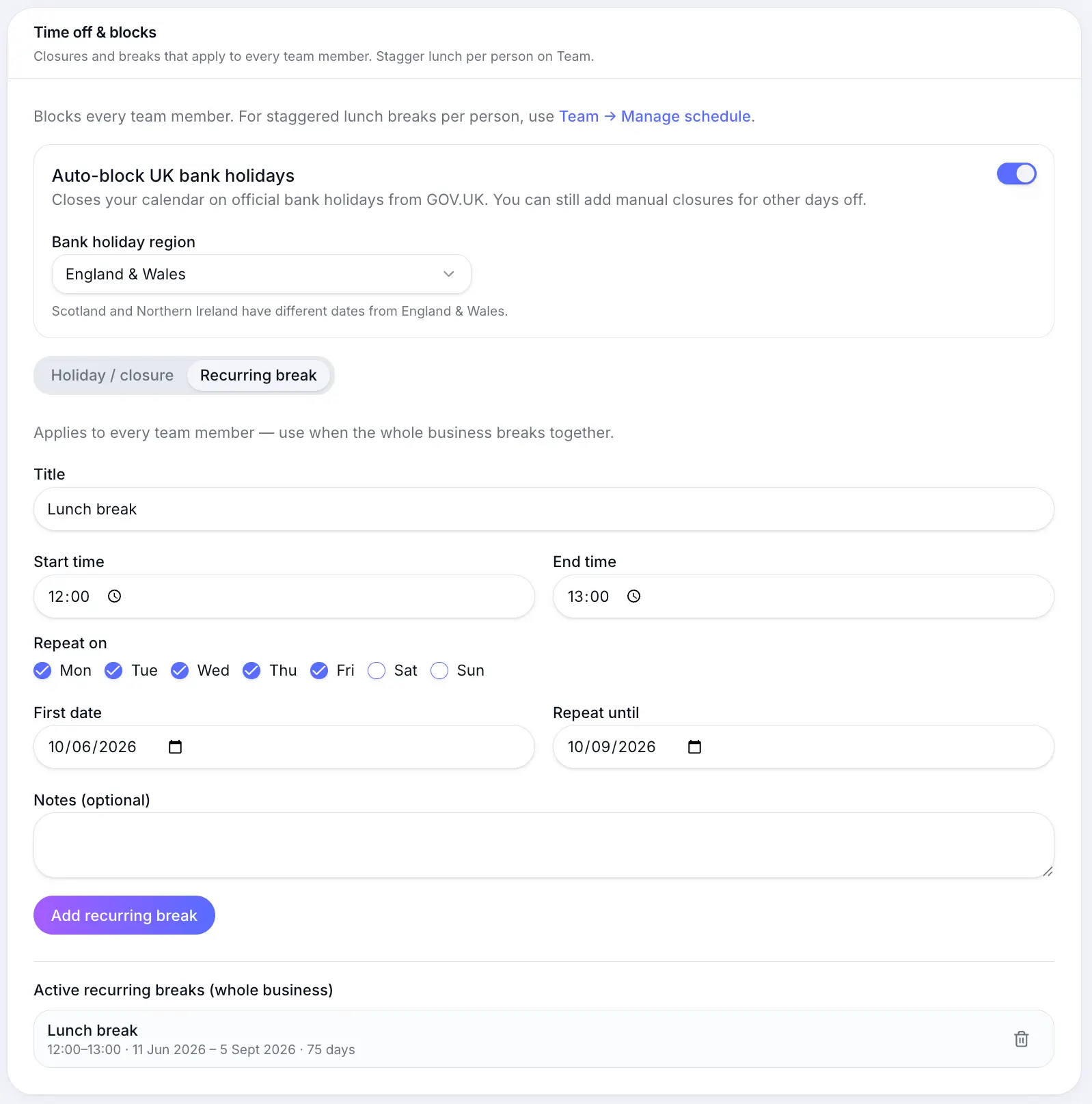
Before you start
Tip
On the Team plan, set per-staff lunch breaks under Team → Manage schedule if your team does not break at the same time.
Step-by-step
Open Scheduling settings
Look for: Scheduling
Go to Time off & blocks
Scroll to the Time off & blocks section at the bottom of the page.
Select Recurring break
Open the Recurring break tab (alongside Holiday / closure).
Look for: Recurring break
Configure the break
Set a title, start and end time, repeat days, and the date range. Submit to create blocks on your calendar.
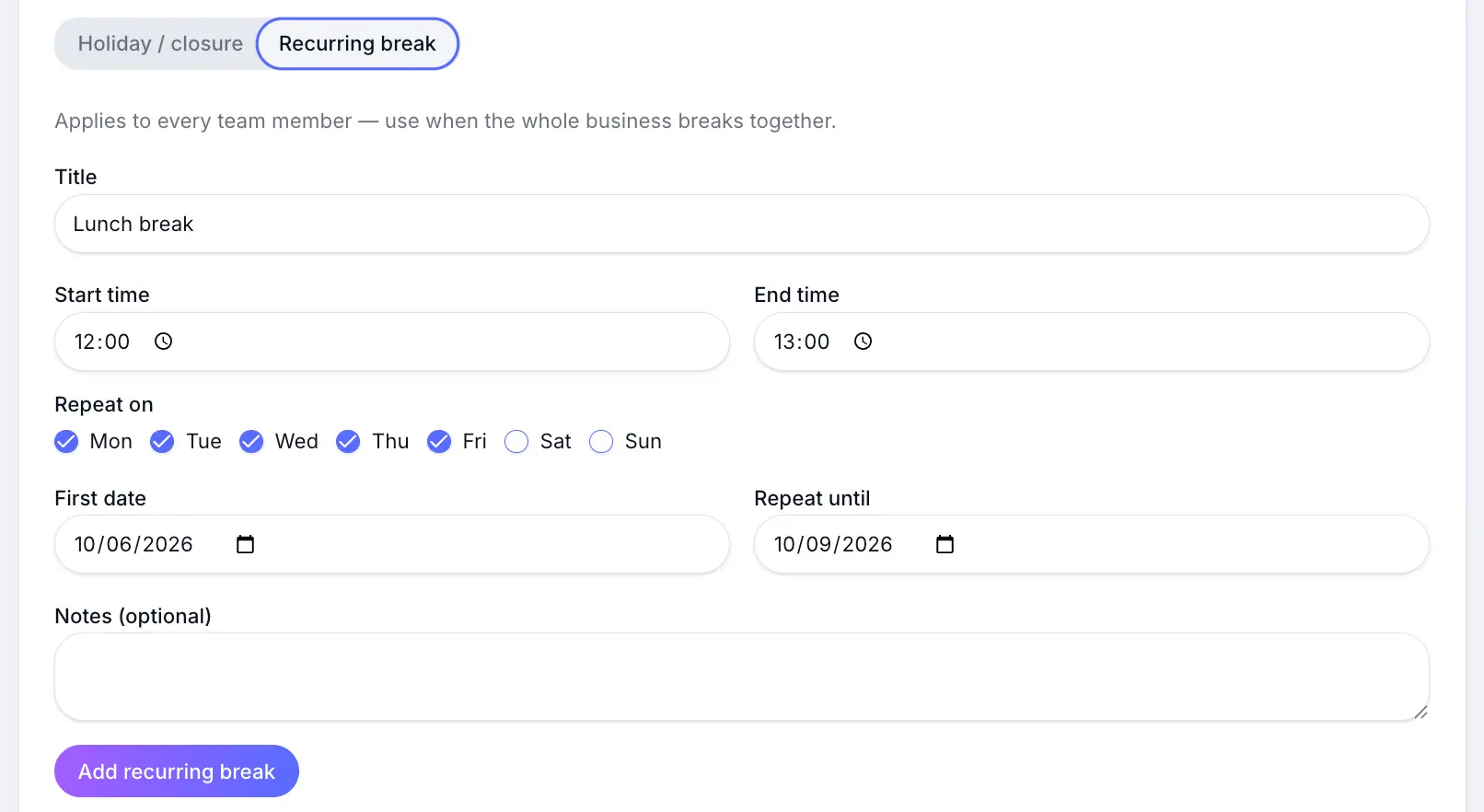
Example: a weekday lunch break from 12:00 to 13:00.
Common questions
Frequently asked questions
Yes. Existing recurring series appear in the block list under Time off & blocks. You can remove a series to stop future blocks.
Related articles
Settings
Setting business hours
Set which days you're open and your daily opening times for customer bookings.
Settings
Holiday closures
Block date ranges when your business is closed — bank holidays, annual leave, or renovations.
Settings
Scheduling settings overview
Booking window, hours, client start times, smart booking, waitlist, and closures.
Still need help?
If this article didn't answer your question, search the help centre or contact our support team.
Sign in to open a tracked support ticket, or use the contact form.