

Weekly location assignment
Assign which booking location you work from on each weekday — Individual plan.
Quick answer: On the Individual plan with two or more locations, set which place you take bookings from each weekday under Scheduling → Location schedule. Customers only see locations active on the day they pick.
Before you start
- Individual plan
- At least two booking locations
Overview
If you work from more than one address — for example a home salon on weekdays and a rented chair on Saturdays — the weekly location schedule tells Sway where you are each day. Customers choose a location when booking, and only see dates when that location is active.
- Requires Individual plan and at least two locations
- Main location comes from Business profile; add extras there first
- Each weekday can use a different location or be marked not taking bookings
- Works alongside business hours — both must allow the slot
Before you start
Individual plan
Multiple booking locations and the weekly schedule require Individual. Free and Team accounts use a single main location from Business profile.
Step-by-step
Add your locations
Set your main address in Business profile, then add up to five extra locations on Individual.
Look for: Business profile
Open Scheduling settings
Scroll to Location schedule — it only appears when you have more than one active location.
Look for: Scheduling
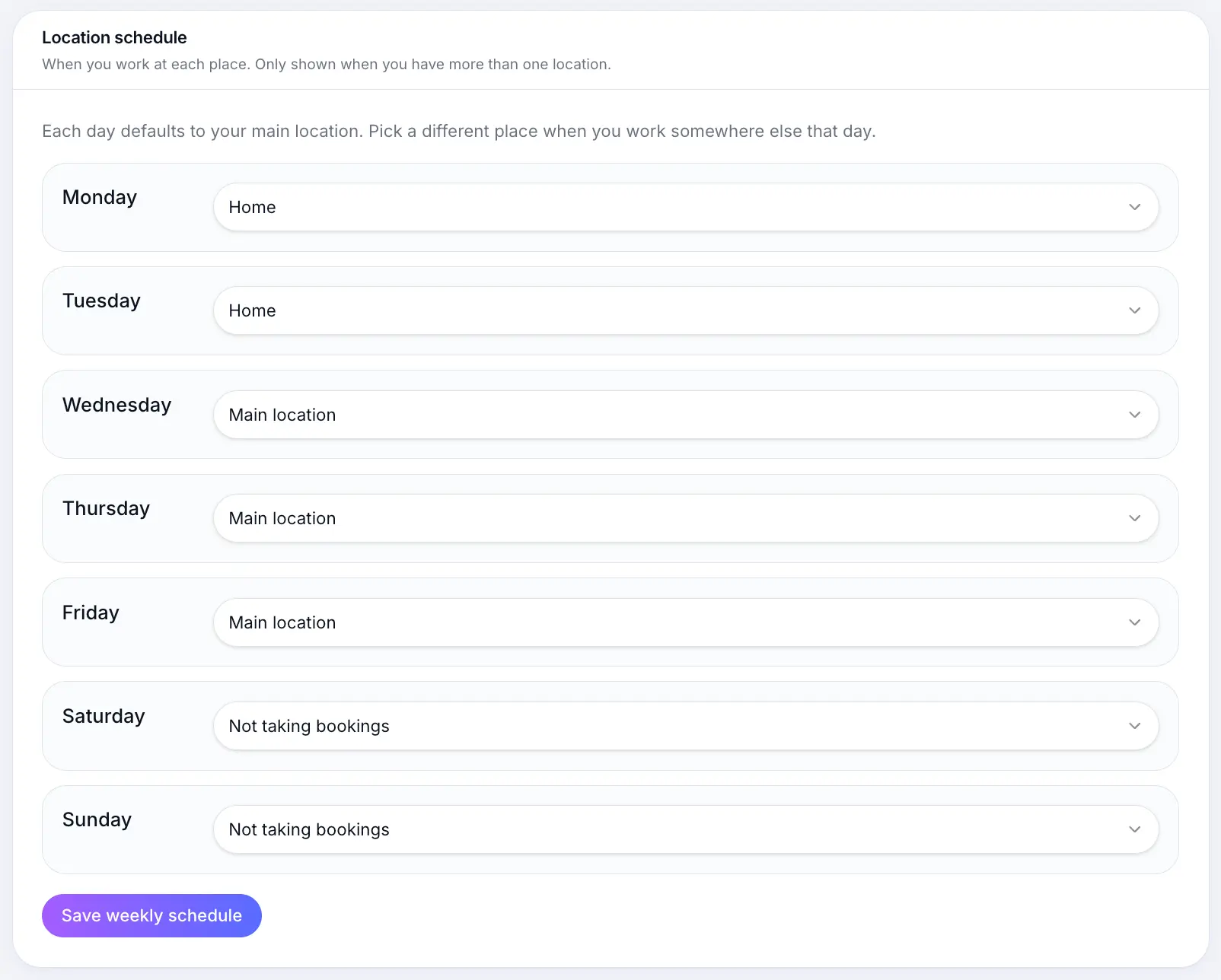
Assign a location per weekday
For each day, pick which location you work from or choose Not taking bookings for days off.
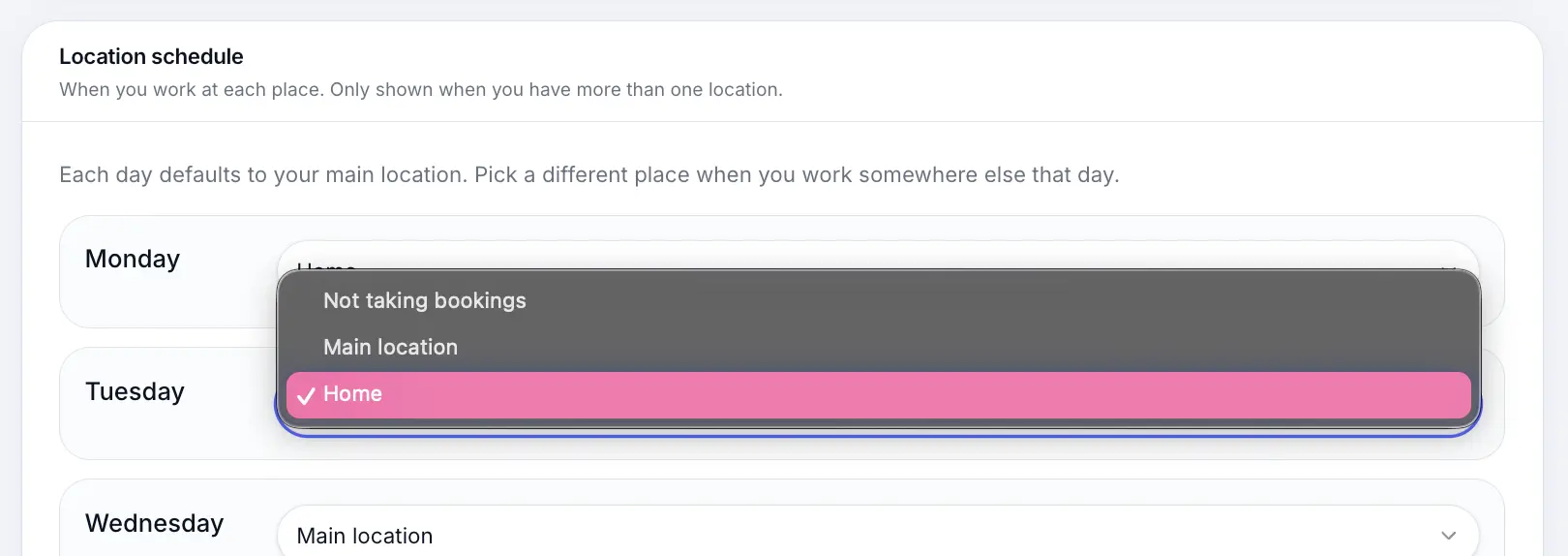
Each day defaults to your main location until you change it. Save weekly schedule
Customers on your booking page will only see locations available on their chosen date.
Look for: Save weekly schedule
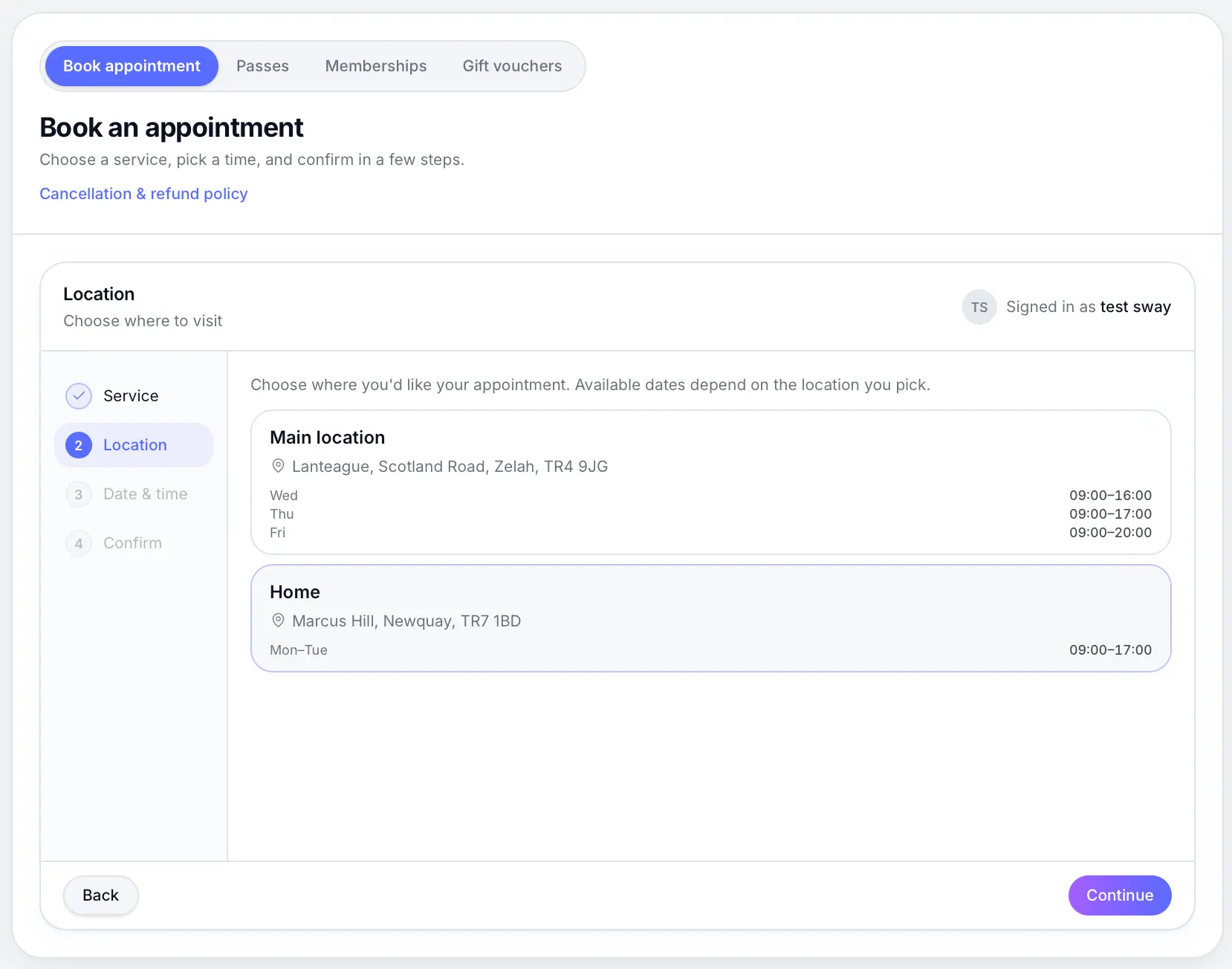
Unavailable locations are hidden for dates they're not scheduled.
Common questions
Frequently asked questions
You need Individual and at least two active locations. Add another location in Business profile first.
Related articles
Settings
Adding locations
Main and additional booking locations for your business.
Settings
Scheduling settings overview
Booking window, hours, client start times, smart booking, waitlist, and closures.
Settings
Setting business hours
Set which days you're open and your daily opening times for customer bookings.
Still need help?
If this article didn't answer your question, search the help centre or contact our support team.
Sign in to open a tracked support ticket, or use the contact form.