

Setting business hours
Set which days you're open and your daily opening times for customer bookings.
Quick answer: Business hours control which days and times customers can book flexible services and when your calendar is open.
Overview
Your business hours define when you're open each week. Closed days are hidden on your public booking page, and flexible services only offer slots within these times.
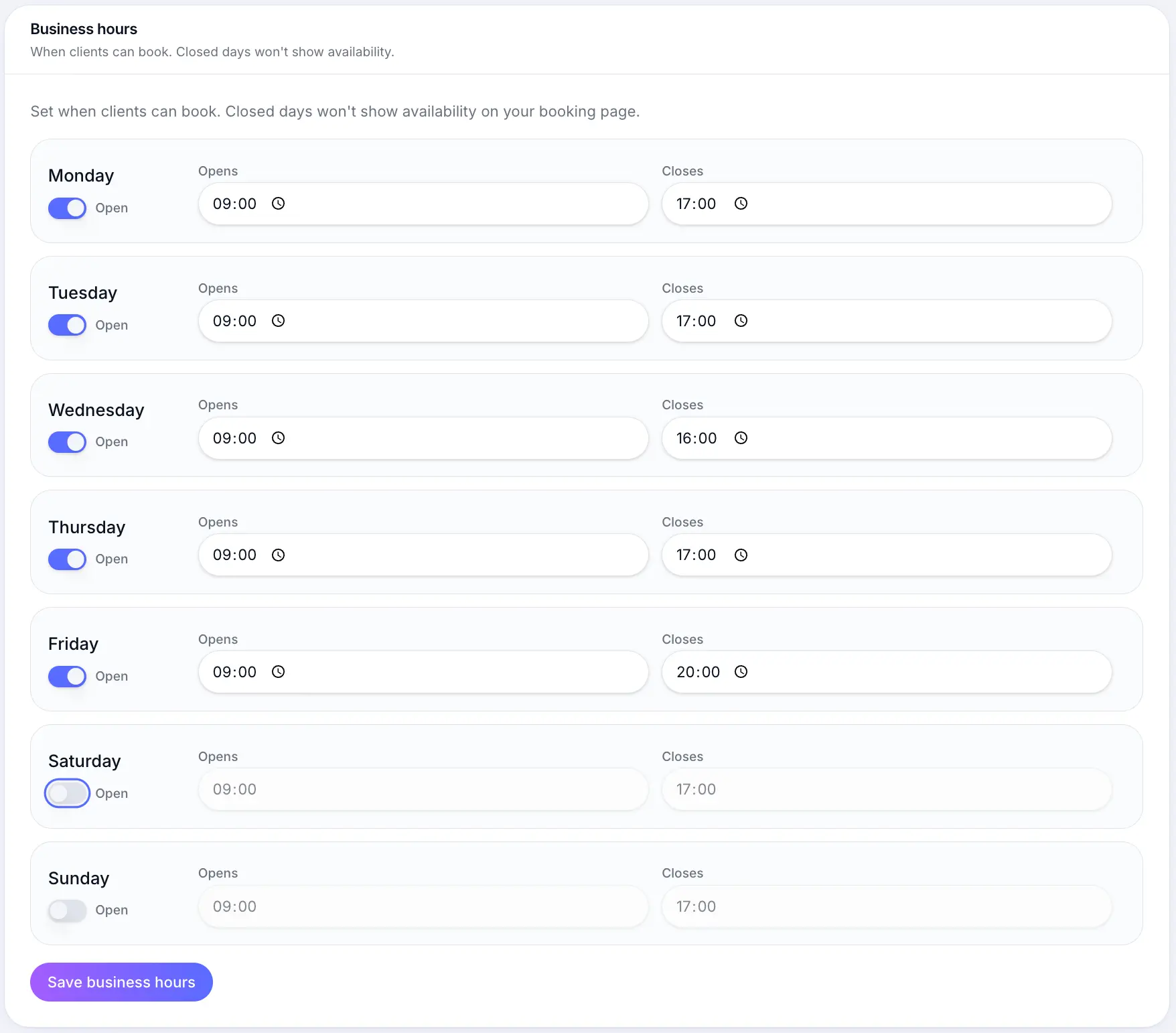
Before you start
Note
Staff with custom working hours (Team plan) use their own hours instead of these defaults.
Step-by-step
Open Scheduling settings
Look for: Scheduling
Set each day to Open or Closed
Toggle days you don't take bookings to Closed — they won't appear on your booking page.
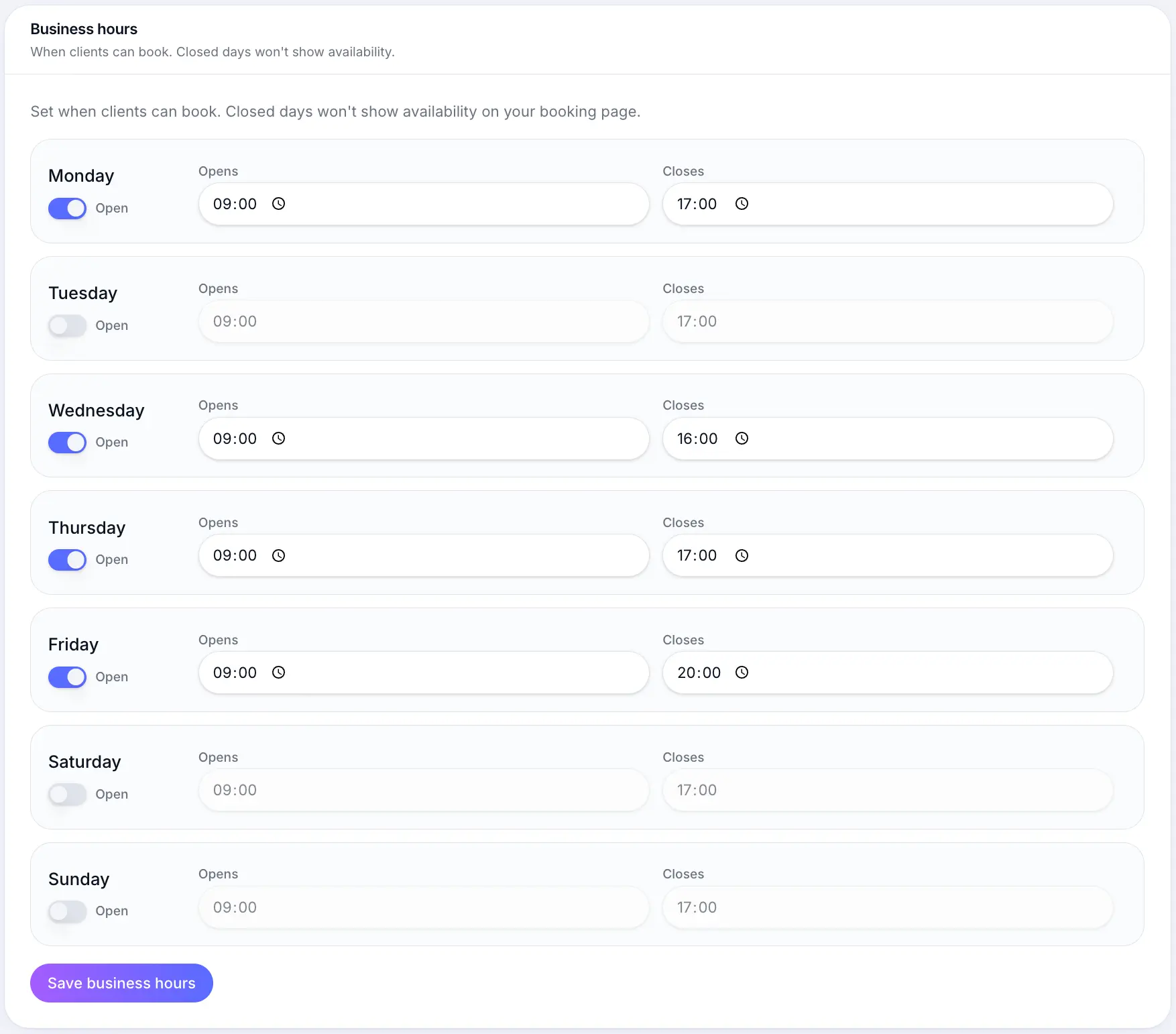
Mark days Closed when you don't take bookings. Set opening and closing times
Look for: Opens
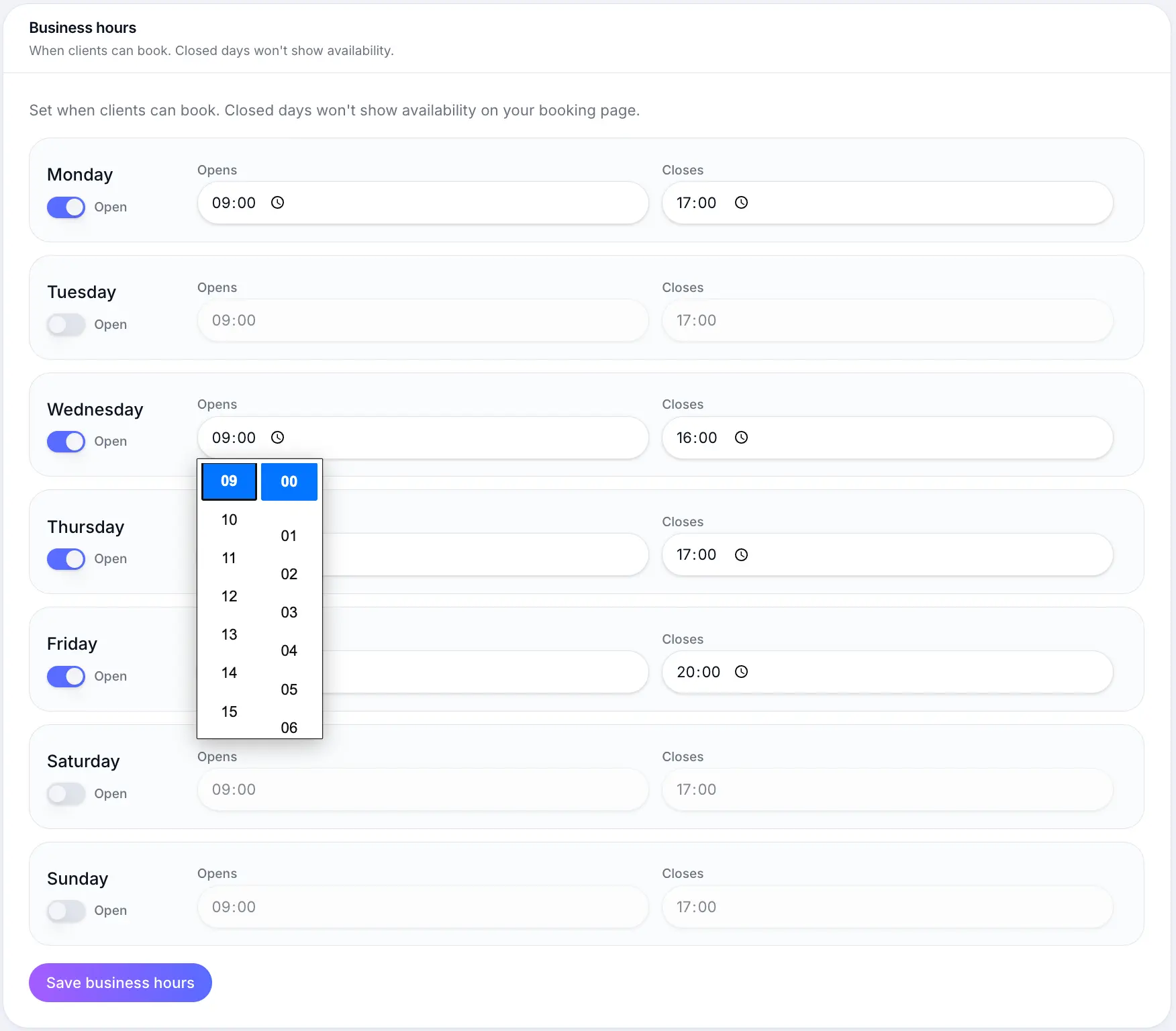
Set when each open day starts and ends. Save your changes
Changes apply immediately to your public booking page and calendar.
What happens next
Customers only see available dates and times within your business hours. Combine with client start times to control the slot grid for flexible services.
Flexible scheduling servicesRead →Common questions
Frequently asked questions
Session times are set per service, but business hours still affect overall calendar availability and blocks.
Related articles
Services
Flexible scheduling services
Create a 1:1 service where customers pick any available time during your business hours.
Settings
Client start times
Control the slot grid interval for flexible services — e.g. every 15, 30, or 60 minutes.
Settings
How far ahead clients can book
Set your booking window so customers can only book within a chosen number of weeks, months, or years.
Still need help?
If this article didn't answer your question, search the help centre or contact our support team.
Sign in to open a tracked support ticket, or use the contact form.